Short URL Online
Introduction
When you create a short link for a document or folder with the Short URL command, the dialog contains the Target Link Type option. It decides which address of the item the short link leads to. This article describes the two choices and how to pick the right one.
For the procedure of creating a short link, see KB10471. How to Create a Short Link for a Document or Folder in SharePoint Online.
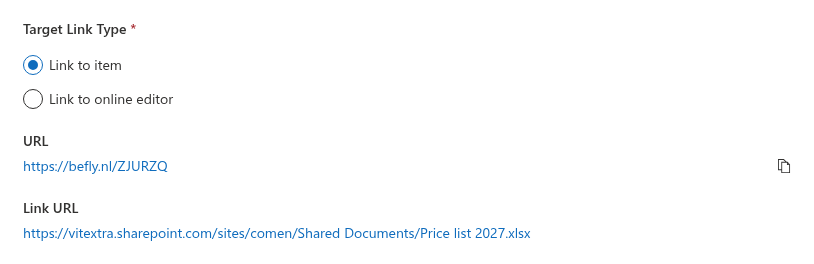
The two link types
| Option | The short link leads to | Typical use |
|---|---|---|
| Link to item | The regular address of the document or folder in SharePoint. This is the default. | General sharing. The item opens the way SharePoint normally opens it. |
| Link to online editor | The address that SharePoint provides for opening the document in its online editor (the embed address of the item). | Sending a document that the recipient should view or edit in the browser. |
When you switch between the options, the Link URL shown below the group changes to the address of the selected type, so you can see exactly where the short link will lead before you save.
How to change the link type
- Select the item in the library and click Short URL.
- In the Target Link Type group, select Link to item or Link to online editor.
- Check the Link URL.
- Click Update.
The next time you open the dialog for the same item, it shows the saved type.
When the option is unavailable
The Target Link Type group is disabled, and only Link to item can be used, when SharePoint does not provide an online-editor address for the selected item. The group is also disabled while the dialog is saving your changes.
📝 Note
The online-editor address is supplied by SharePoint for each item. Vitextra Short URL Online does not create it, so the availability of Link to online editor depends on the item and on your SharePoint environment.
Access rights
A short link only redirects to the address of the item. It does not grant any permissions. A person who follows the link must have access to the document or folder in SharePoint, otherwise SharePoint will ask them to sign in or will show an access-denied message.
❗ Important
Before you send a short link to people outside your team, make sure the document is shared with them in SharePoint.
💡 Tip
If you only need to shorten the address of a web page or an external resource, use the Short URL web part instead. See KB10475. How to Add the Short URL Web Part to a Page.