Short URL Online
Introduction
The Short URL web part turns any web address into a short link without leaving SharePoint. Unlike the Short URL command, which works on documents and folders in a library, the web part accepts any address: a SharePoint page, a Teams link, a document stored elsewhere, or an external site.
Before you begin
- The vitextra.short-url-online.webparts.sppkg package is deployed to the App Catalog. See KB10057. How to Deploy and Set Up Short URL Online.
- You have permission to edit the page.
Add the web part to a page
- Open the SharePoint page and click Edit.
- Click + (Add a new web part) at the place where you want the web part.
- Type Short URL in the search box and select the Short URL web part.
- Optionally click the Web Part Title area and type a title, for example Shorten a link.
- Click Publish (or Republish).
📝 Note
The Short URL web part can be added to a section of a modern page. It cannot be placed on a full-width app page and does not support the classic SharePoint pages.
Create a short link
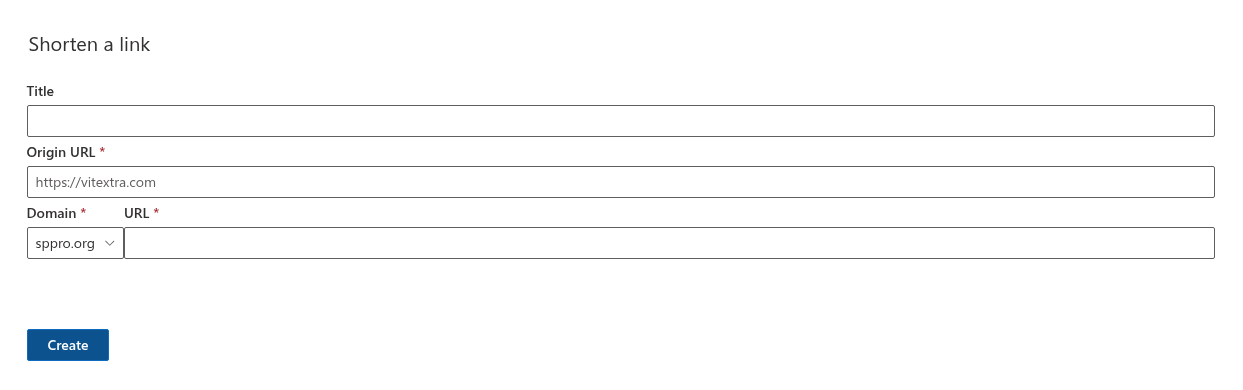
- In Title, type an optional name for the link. It helps to recognize the link later in the Short URL Management web part.
- In Origin URL, enter the address that you want to shorten. The field is required; the placeholder shows the expected format,
https://vitextra.com. - In Domain, select the domain of the short link.
- In URL, type the short name. The field is required.
- Click Create.
The button shows a clock icon while the link is being created. When it is done, the message Save completed successfully. appears, and the Shortened URL field shows the new link with a copy icon.

- Click the copy icon. The word Copied appears briefly. Paste the link where you need it.
Change the link you just created
After the link is created, the Create button becomes Update. If you change the Origin URL, Domain or URL and click Update, the same link is changed; no new link is created.
❗ Important
The web part does not remember the link after you close or reload the page. To change or delete a link later, use the Short URL Management web part. See KB10474. How to Add and Configure the Short URL Management Web Part.
Messages
| Message | Meaning |
|---|---|
| This field is required | Origin URL or URL is empty. |
| This name already exists. You must specify a unique name. | The short name is taken. Choose another one. See KB10473. How to Choose a Domain and Customize the Short Name of a Link in Short URL Online. |
| The following error occurred: followed by a text | The Short URL service returned another error. Try again; if it persists, contact Vitextra support. |
💡 Tip
To shorten a document or folder from a library, use the Short URL command instead; it fills in the address and the title for you. See KB10471. How to Create a Short Link for a Document or Folder in SharePoint Online.