Short URL Online
Introduction
A short link is useful only when it reaches the people you want to share it with. Short URL Online lets you copy a link with one click everywhere it is displayed, and open it in a new browser tab to check where it leads. This article describes the three places where you can do this.
In the Short URL Management list
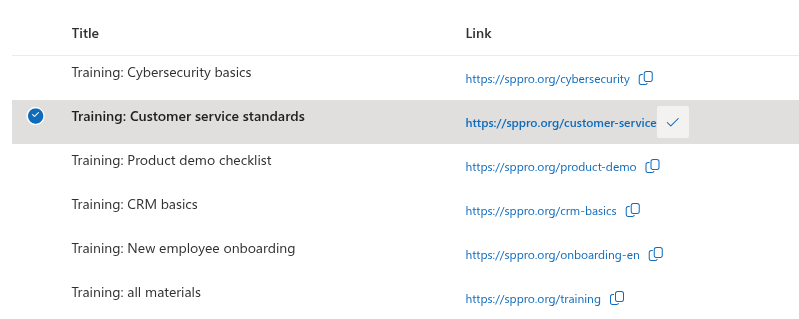
In the Link column, each row shows the complete short link.
- Click the link text to open the short link in a new browser tab.
- Click the copy icon (Copy to Clipboard) next to the link. The icon briefly changes to a check mark, which confirms that the link is in the clipboard.
📝 Note
If the link text is too long for the column, it is truncated with an ellipsis. Hover over it to see the full link in a tooltip, or widen the column by dragging the edge of its header.
In the Short URL dialog (documents and folders)
After you click Short URL on the command bar of a document library, the dialog shows the URL field with the full link and a copy icon. Click the icon: the word Copied appears briefly next to it. The Link URL below shows the address that the short link leads to; click it to open the target in a new tab.
For the full procedure, see KB10471. How to Create a Short Link for a Document or Folder in SharePoint Online.
In the Short URL web part
When a link is created or updated in the Short URL web part, the Shortened URL field shows the new link with a copy icon. Click the icon to copy the link; the word Copied appears for a moment. Click the link to open it in a new tab.
For details, see KB10475. How to Add the Short URL Web Part to a Page.
What gets copied
The copy button copies the complete short link: the domain followed by the short name, for example https://sppro.org/price-list. It does not copy the title or the target address.
Check that a link works
Open the short link in a new tab and make sure it leads to the expected page. If the link is for a SharePoint document, the person who opens it must have access to that document in SharePoint.
💡 Tip
If you have just changed the short name or the domain of a link, copy the link again from the list. The link that you copied earlier no longer matches the edited link.