Policy Acknowledgement
This guide takes you through a small end-to-end pilot. Use a test policy and an employee account included in the pilot audience. You need access to Policy Admin for setup and Policy Manager for policy and campaign work.
Define a pilot you can evaluate
Before configuring the application, agree what a successful pilot should demonstrate. Choose one policy owner, a small named employee group and a reporting user. Use a document that is safe for these people to read and whose source permissions you can inspect. A successful administrator preview alone is insufficient: it does not exercise an employee's access or evidence-writing permissions.
Write down the policy title, intended first version, expected audience and intended deadline. Keep the first campaign simple enough that you can account for every selected person. For example, use a fictional information-security policy and a small explicitly selected group rather than an unrestricted directory audience. Use a separate employee browser session so that the administrator's broader permissions do not mask access problems.
Decide whether the pilot includes background automation. A direct-mode pilot can demonstrate publication, assignments, reading and confirmation without demonstrating scheduled reminders. If automatic processing is part of acceptance, arrange the separate service and its owner in advance. Do not mark that requirement complete merely because the notification settings have been saved.
Know what should exist at each stage
| Stage | Expected result | What is not implied |
|---|---|---|
| Save the policy | A draft card with a source and owner. | A published release or employee task. |
| Publish | A version entry and a published policy. | A launched campaign. |
| Launch | A campaign and new assignments for eligible users who are not skipped. | Successful email delivery to every assignee. |
| Confirm as employee | A receipt and an acknowledged assignment. | Proof that the employee understood every passage. |
| Review reporting | The assignment contributes to the applicable report scope. | Identical counts in every dashboard and matrix. |
Use these checkpoints to isolate a failure. If the policy is visible but the employee has no task, inspect the campaign and assignment before changing document permissions. If the assignment opens but its source is denied, investigate source access. If submission reports an error, inspect the receipt and assignment state before sending again: recording involves several operations.
After the successful path, test one exception with an appropriate pilot assignment. Ask a question, or submit a reason why confirmation is not possible, and have the owner inspect the case. Those actions have different effects on assignment state. This verifies that the organization has someone to handle exceptions rather than only collecting successful confirmations. The detailed distinction is explained in KB10527. How to Ask a Policy Question or Report That You Cannot Acknowledge.
Prepare the hub and pages
- Deploy the solution using KB10035. How to Install a Vitextra Product in SharePoint Online and approve its requested Microsoft Graph permissions. Product-specific prerequisites are explained in KB10497. Policy Acknowledgement: Requirements and Permissions.
- Add Policy Admin to a SharePoint page and complete the setup wizard. Select the storage site, administrator group and other roles. See KB10498. How to Complete the Policy Acknowledgement Setup Wizard.
- Create pages containing My Policies, Policy Reader, Policy Manager and Compliance Dashboard. Connect them to the same hub and configure the reader page address. See KB10499. How to Create Policy Acknowledgement Pages and Connect Web Parts.
- Confirm that the pilot employee can open the source document and the employee pages.
❗ Important
For a pilot without a connected service, review the Direct-mode permissions before proceeding. Do not select Service mode without a working endpoint and confirmed administrator consent. See KB10509. Policy Acknowledgement Data Storage: Direct and Service Modes.
Create and publish the policy
- Open Policy Manager and select New policy.
- Enter a title, choose an owner and category, select the content source and supply its URL.
- Configure the reading controls and confirmation text, then select Save.
- If the draft is hidden by the status filter, choose Draft or All statuses.
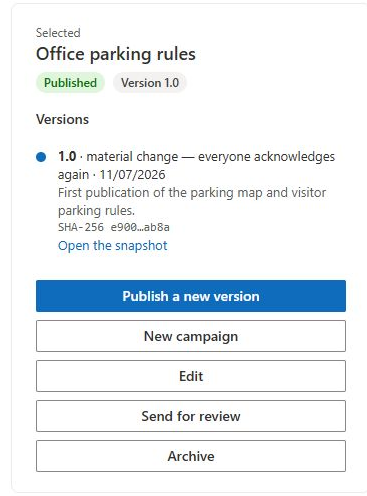
- Select the policy, choose Publish a new version, review the version and effective date, and select Publish.
The first publication creates a published version. It does not automatically open or launch a campaign.
Assign and confirm
- Select New campaign and use One-time.
- Add only the pilot employees, check the exclusions and review the audience preview. Set the due period and launch the campaign. See KB10503. How to Create and Launch a Policy Acknowledgement Campaign.
- Sign in as a pilot employee and open My Policies. Open the assignment and follow the reader's conditions.
- Select the confirmation checkbox, enter your name if required and select I acknowledge.
- Verify that a receipt appears. Reload My Policies and confirm that the assignment is under Acknowledged.
Verify the result
Open Compliance Dashboard as an authorized reporting user and check the pilot policy and employee assignment. Confirm the recorded version and completion date. Resolve access or recording errors before assigning the policy to a larger audience. The detailed employee procedure is in KB10506. How to Read a Policy and Acknowledge It.