Policy Acknowledgement
After preparing the policy hub, create the pages that employees and managers will use. You need SharePoint page-editing permission. The setup wizard prepares storage but does not create this page layout.
Create the page set
Add each web part to a suitable SharePoint page, save its settings and publish the page for its intended audience.
| Web part | Suggested location |
|---|---|
| Policy Admin | Administration page. |
| My Policies | Employee starting page. |
| Policy Reader | Shared page that opens the selected assignment. |
| Policy Library | Browsable policy catalogue. |
| Policy Manager | Policy-owner and compliance-management page. |
| Compliance Dashboard | Reporting page. |
| Team Compliance | Team-manager page. |
| Pending Policies Bar | Intranet home page or another frequently visited page. |
Configure the connection
- Edit a web part and open Connection.
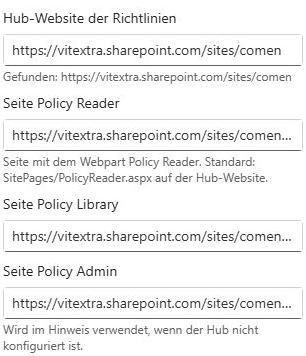
- Set Policy hub site to the chosen storage site. An empty value requests automatic hub detection; explicitly setting it makes the intended connection clear.
- Where available, set Policy Reader page to the page containing Policy Reader.
- Set Policy Library page where the library link is used, and Policy Admin page for administration guidance.
- Repeat for the other web parts, using the same hub.
If no reader or library URL is configured, navigation uses SitePages/PolicyReader.aspx and SitePages/PolicyLibrary.aspx on the hub. Those pages must actually exist.
Configure reader and return navigation
Policy Reader receives policyId and, for an assignment, assignmentId in the page URL. For a shared reader, leave Fixed policy ID empty. Use a fixed policy ID only for a page dedicated to that policy when no policyId is supplied.
Set My Policies page on Policy Reader to provide a return link. On Pending Policies Bar, the same setting directs the banner to My Policies; without it, the banner opens its first pending policy.
Plan the page journey before sharing links
Use My Policies as the starting point for required work and Policy Library as the starting point for browsing. Both can lead to the shared reader, but a library visit does not itself create an assignment. Keeping those entry points clear helps employees understand whether they are looking at reference material or a task with a deadline.
The reader page is normally reusable across many policies. It reads identifiers from the navigation URL and loads the relevant content and assignment. You do not need to create a separate reader page every time an owner publishes a policy. A dedicated fixed-policy page is a different choice: use it only when that is the intended navigation design, and still test how assignment links are resolved.
For example, place the employee start page in the portal navigation, keep a common reader page on the hub, and provide a catalogue link for voluntary browsing. Give authors and reporting users their own appropriate starting pages. This is a suggested organization of pages, not a requirement to expose administrative navigation to employees.
Diagnose a broken transition
| Observation | First check |
|---|---|
| The target page cannot be opened | Verify that the page exists, is published and is accessible to the user. |
| The reader opens without the intended policy | Inspect the policy and assignment identifiers in the link and the reader's fixed-policy configuration. |
| The page shows an unexpected set of records | Compare the resolved hub and configured hub URL across the source and destination pages. |
| The policy opens but the document does not | Test the source URL independently; navigation does not grant content permissions. |
| The return link is absent or wrong | Review the reader's configured My Policies page address. |
Test navigation through the application's real links rather than only opening the bare reader URL. A reader without a fixed policy or URL identifiers has no selected item to display. Conversely, a link to another employee's assignment is not a mechanism for acting as that employee; the reader resolves the current user's applicable assignment.
If a page is renamed or moved, revisit the web parts that link to it. Configured page addresses are stored values, not a guarantee of automatic discovery after a navigation change. Test the personal page, library, banner and campaign-related reader links again after updating the destination. Reload the pages after connection changes so that cached hub resolution does not confuse the test.
Test the published pages
Open an assignment from My Policies as a pilot employee. Confirm that the correct policy opens, that return navigation works and that the library link opens the intended page. Check the management and reporting pages with their respective roles.
📝 Note
The Access group explains centralized product roles. Hiding a web part from an audience does not grant or revoke SharePoint data permissions. Configure the roles separately using KB10500. How to Configure Policy Acknowledgement Roles and Permissions.