Policy Acknowledgement
My Policies is your personal starting point for policy assignments. Open the page provided by your organization while signed in with your Microsoft 365 account. Each assignment refers to a policy version and may have a deadline.
Find what needs attention
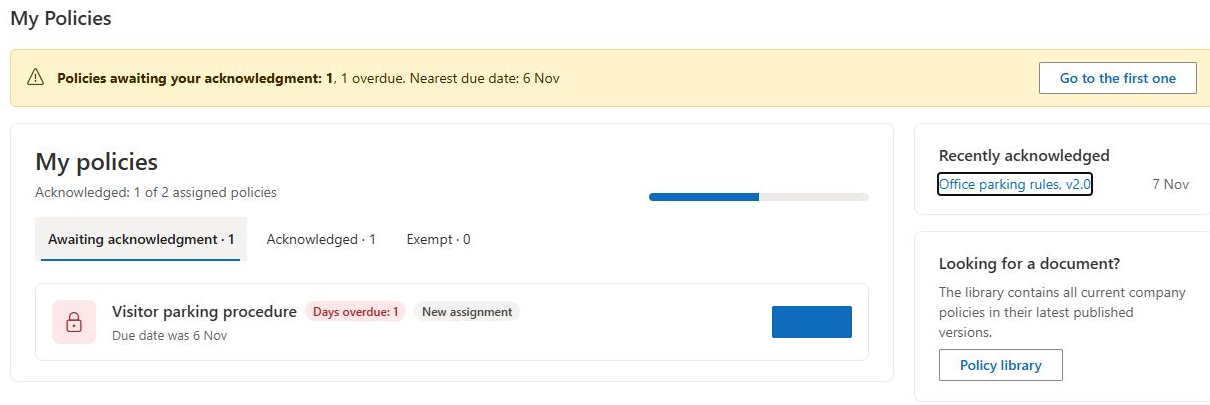
Select Awaiting acknowledgment. The list includes assigned and overdue policies, as well as assignments awaiting review or paused assignments. Items are ordered by due date; those without a date appear later.
The banner summarizes pending work and highlights overdue assignments. Go to the first one opens the first pending item. This item may need review rather than immediate acknowledgement, so read its status before proceeding.
Open an assignment using Open. Check the version, deadline and any update information in Policy Reader, then follow KB10506. How to Read a Policy and Acknowledge It. An assignment becomes overdue when its due date is earlier than the current day; the due date itself is still within the deadline.
Find previous confirmations and exemptions
Select Acknowledged to see completed assignments, with the most recent confirmation first. Open the relevant item or its Receipt action to view the recorded confirmation in Policy Reader.
Select Exempt to see assignments from which you were exempted. Exemption is different from acknowledging a policy. It does not add a confirmation to your acknowledged count.
If enabled by the page editor, the recently acknowledged panel shows up to 5 items. The library card opens the policy catalogue, where you can browse content beyond your personal assignments.
Decide what to do with each item
Read the status and version before treating every card as the same kind of task. The pending tab is a work queue, not just a list of enabled confirmation buttons. Several situations can remain visible there while requiring different actions from you or the policy owner.
| Situation | Appropriate next step |
|---|---|
| Assigned and within the deadline | Open the task, read the policy and follow the confirmation requirements. |
| Overdue | Open the task and check the content; contact the owner if you cannot complete it. |
| Requires review | Wait for or seek resolution of the reported issue; do not submit the same reason repeatedly. |
| Paused | Check the displayed state with the responsible owner rather than assuming a new deadline. |
| Already acknowledged | Open the recorded receipt if you need to inspect the confirmation. |
| Exempt | Review the exemption information; this is not a confirmation you made. |
Being overdue does not by itself mean the policy has disappeared or that you should search for a replacement assignment. Conversely, reading a policy from the catalogue does not complete your task. Use the assigned item and check for the resulting receipt when you submit.
Recognize a new-version request
You may have a completed confirmation for an earlier release and a pending task for a later release of the same policy. For example, a receipt for version 1.0 does not automatically complete an assignment for version 2.0. Open the pending task, check the version and any change summary, and follow the new assignment's requirements.
The title can remain the same across releases. Distinguish records by version, status and dates rather than assuming repeated titles are duplicates. If two open items appear to request the same work, send their identifiers or links to the owner for review instead of choosing one arbitrarily or confirming both without understanding the difference.
Confirm that your action was recorded
After submitting, check the receipt in the reader and then reload the personal list. Locate the completed assignment in the acknowledged view and compare the version and date. Merely opening the source in a new window does not create this confirmation, and selecting the statement checkbox without submitting does not save it.
If an error appears after submission, preserve the message and time. Reopen the assignment to inspect its current state before repeatedly submitting again. The recording process can fail after some data was written, so an owner or administrator may need to reconcile the assignment and evidence. See KB10538. Troubleshooting Failed Acknowledgements and Missing Notifications for that investigation.
When asking about a missing task, provide the policy title, expected version, account and the page you used. That helps the owner distinguish an audience exclusion from a different hub, account identifier or an already-existing same-version assignment.
Understand status and missing items
An assignment marked Needs review is awaiting resolution after a reported inability to acknowledge. It remains in the pending tab but cannot be confirmed through the normal reader panel until the issue is resolved or the assignment is reopened.
📝 Note
An empty pending list means this view has no pending assignments for your account. It does not mean that the organization has no policies. If an expected assignment is missing, ask the campaign owner to check the audience, exclusions and version, and confirm that you opened the intended policy hub.
The personal progress count excludes exempt assignments. It can differ from organization-wide dashboard figures because those reports use a different population and also exclude paused assignments from their compliance denominator.