Policy Acknowledgement
Compliance Dashboard summarizes policy assignments for authorized reporting users. Administrators, compliance managers and auditors can view the broader policy scope; authors are filtered to their own policies. Page-level category settings and a policy-specific report link can narrow it further.
Select the reporting scope
- Open the page containing Compliance Dashboard.
- Review whether you are viewing the whole available scope or one policy.
- Choose a department or keep the all-departments selection.
- Set Status as of the selected date to today or an earlier date.
The dashboard recalculates from loaded assignments. It excludes assignments created after the selected date. For an assignment acknowledged later than that date, the historical calculation treats it as still open or overdue at that time.
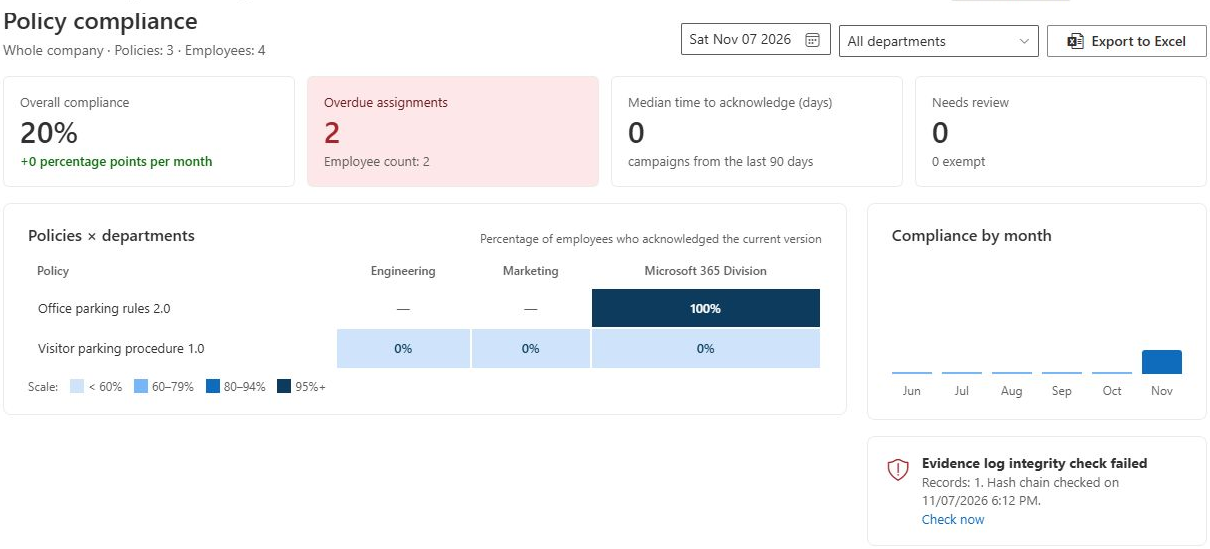
Interpret the indicators
| Indicator | Calculation |
|---|---|
| Overall compliance | Acknowledged assignments divided by included assignments, excluding exempt and paused assignments. |
| Overdue assignments | Assignments whose calculated status is overdue on the selected date. |
| Median time to acknowledge (days) | Median elapsed days for completed assignments assigned within the preceding 90 days and acknowledged by the selected date. |
| Needs review | Assignments whose calculated status requires review. |
The main compliance percentage counts assignments, not distinct people. One employee with several policies contributes several assignments.
Read the matrix and trend
The policy-by-department matrix includes published policies and policies under review and uses assignments for each policy's current version. The overall indicator can include assignments for other versions in the selected policy scope, so it need not equal a simple average of the matrix cells.
The monthly trend contains 6 monthly points ending at the selected date. The overdue list helps identify the oldest outstanding deadlines. The page editor can hide the trend or overdue list.
📝 Note
The historical date is a calculation from current assignment records and their dates, not a complete replay of every past status change. Previous exemption, pause and review transitions are not fully reconstructed. Use the audit and evidence records when investigating a specific history.
Investigate a low percentage in a useful order
Start with the reporting scope, then the assignment states, and only then decide on follow-up. A low value can reflect genuinely unfinished work, a recently launched campaign, a broader policy selection or assignments requiring owner decisions. Sending reminders to everyone without checking these causes can target people whose next action belongs to an owner or administrator.
Check that the selected date and department match the question you are answering. Next, inspect overdue work separately from assignments still within their deadlines. Review the cases awaiting a decision, since those contribute differently from exempt or paused assignments. For a particular employee, inspect the assignment rather than treating an aggregate percentage as evidence of that person's state.
| Question | Useful view or supporting record |
|---|---|
| Which work needs follow-up today? | Current overdue assignments and review-required cases. |
| Which current policy version is lagging by department? | The policy-by-department matrix. |
| Why does the overall number differ from the matrix? | Assignment versions and scope in the underlying rows. |
| What did one employee confirm? | The employee's receipt and acknowledgement record. |
| Why did a policy or campaign change? | Version history and administrative audit events. |
Reconcile a small sample before sharing a conclusion
Suppose a selected scope has 8 assignments: 4 acknowledged, 2 still open, 1 exempt and 1 paused. The compliance denominator is 6, not 8, because exempt and paused assignments are excluded. The result is approximately 66.7%, even though only half of all stored rows are acknowledged. One employee may account for several of these rows.
Now consider a matrix limited to a policy's current version while the overall scope also contains older-version assignments. A different matrix percentage can be expected. Do not average department cells without considering their assignment counts, and do not assume that a team matrix and organization dashboard use identical record populations.
For a past-date report, check at least one assignment that was confirmed after the selected day. Its calculated historical status can be open or overdue even though the current record is acknowledged. Also inspect an exemption or pause: the current special status is used without reconstructing every historical transition. Detailed date rules are in KB10531. How Policy Compliance Is Calculated for a Selected Date.
When sharing the result, include the reporting date, department, policy/category restrictions and whether you are discussing assignments or employees. Keep an export of the relevant rows when reconciliation matters. The Excel file is an operational table, not a complete evidence archive; KB10532. How to Export Policy Compliance Assignments to Excel explains its fields and limits.
Export and inspect evidence
Select Export to Excel to download assignment rows for the selected policy scope, department and date. The export includes the calculated status for that date. Review the scope before sharing employee information.
The integrity panel can check the acknowledgement hash chain with Check now. Run this check with an administrator account that can update product settings and the audit log; the read-only auditor role may receive a permissions error. Its result concerns the evidence log, rather than only the displayed department. Integrity checking does not establish that source content is unchanged or that records are protected against every administrator action. See KB10509. Policy Acknowledgement Data Storage: Direct and Service Modes.