Policy Acknowledgement
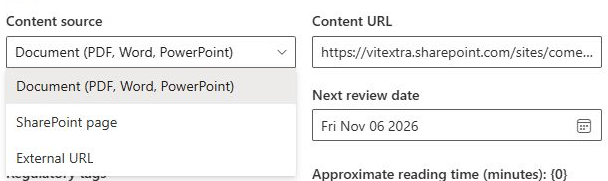
A policy card points to content; it does not replace the document or website where that content is maintained. Choose the source type that matches the material and the evidence you need to retain. The choice affects preview, publication and what can later be inspected as a saved version.
Compare the supported source types
| Source | Reader behavior | Publication behavior |
|---|---|---|
| Document | PDF uses a browser frame; supported Office file extensions use an Office viewing URL; other files use their source URL. | A same-origin file can be hashed and copied into the version library. |
| SharePoint page | Page canvas content is rendered inline when it can be read; otherwise the source is opened through the available viewer path. | The source file can be hashed, but no equivalent full page-content snapshot is created. |
| External URL | The destination is embedded or opened separately, subject to its own access and framing rules. | No content fingerprint or full content snapshot is created. |
The viewer contains handling for PDF, Word, PowerPoint and Excel extensions, but a supported extension is not a guarantee that any file or sharing URL will preview correctly. Source permissions, the actual file URL and the destination's behavior still matter.
Configure the source
- Open the policy in Policy Manager and select Edit, or create a new card.
- Select Content source and enter Content URL. Prefer a direct, stable content URL over a temporary sharing link.
- Check the URL in a separate browser tab with the intended employee account.
- Save the card, publish a pilot version and open a pilot assignment in Policy Reader.
- Confirm the preview, the separate-window link and the reading conditions before launching a broad campaign.
Understand access and version evidence
The URL field does not grant file, page or website permissions. An employee can have access to the policy hub and still be unable to read its source. Test both access paths independently.
For document snapshots, the implementation checks that the source URL has the same origin as the hub, then reads and copies the file. Content on a different origin is not automatically imported as a protected document. Page and external version records use metadata files in the version library; those files must not be mistaken for archived copies of the complete content.
❗ Important
Policy Reader currently displays the policy's configured source. It does not automatically substitute the saved version snapshot when an older assignment is opened. If exact historical content is important, inspect the explicit version snapshot and verify that the content being presented for confirmation matches the intended version.
Choose reading controls that fit
Inline page content allows the reader to observe its own scroll area. A framed document or external website does not provide the same scroll evidence. The implementation can satisfy the non-page scroll condition after opening and waiting at least 30 seconds or the configured minimum, whichever is longer. Set expectations accordingly; a successful checklist is not proof of comprehension.
Choose a source for the evidence you need
If a policy already exists as a maintained document and a retained file matters, a supported document source on the hub's origin is the clearest path to a document snapshot. Verify both the copied file and the employee's access to the original. A snapshot supports later inspection but does not automatically replace the source shown in every reader session.
A SharePoint page can provide an inline reading experience and measurable scrolling in the reader's own container. Choose it for that experience only after checking the actual page content. Do not choose it on the assumption that publication archives an equivalent rendered page with all dependencies. An external URL is suitable for linking to externally maintained material, but the destination controls access and framing and the product does not retain a full content snapshot.
These are content-management choices as well as viewing choices. Establish who can update the source and how an owner will publish a corresponding revision. A source that changes independently without a publication decision can make the policy version label and the visible material diverge.
Test a source before committing a campaign
| Test | What to inspect |
|---|---|
| Direct employee access | The intended account can read the URL outside the web part. |
| Embedded display | The actual file or page renders, or a usable separate-window path exists. |
| Reading conditions | The requirements work for this source type and do not leave an unexplained blocked task. |
| Published evidence | History contains the expected fingerprint or retained file for the chosen type. |
| Later maintenance | The owner can identify where the live content is edited and how revisions are published. |
If the source is moved after launch, inspect existing assignments before replacing the URL. Updating the card can change what those assignments display when reloaded. Preserve the old version information and check the new link as an employee. A working replacement URL solves access, but does not by itself establish that earlier confirmations refer to the same content.
Verify and maintain the source
After moving, renaming or replacing content, reopen a pilot reader and inspect the publication history. A source change is not a new published version until the publication operation is performed. Use KB10514. How to Publish a New Policy Version and Request Acknowledgement Again for new versions and KB10519. What to Do When Policy Content Changes Without a New Version for source-change warnings. If preview fails, keep the error and source URL available for the administrator rather than changing the source type simply to silence the warning.