Policy Acknowledgement
Library import creates policy cards for selected files that already exist on the hub site. It is useful for preparing an existing document collection for policy management. It does not upload files, migrate content from another site, publish versions or assign employees.
Prepare the library and access
Use an administrator or compliance-manager account for the initial import and follow-up ownership checks. The import dialog reads visible document libraries on the resolved hub. It excludes the product's version library and certain system libraries by title, including Site Assets and Site Pages.
Make sure the source files are readable and that the intended employee population will have access. For files outside the hub's available libraries, create individual policy cards with the appropriate source URL instead of expecting the import selector to browse the whole tenant.
Select and import files
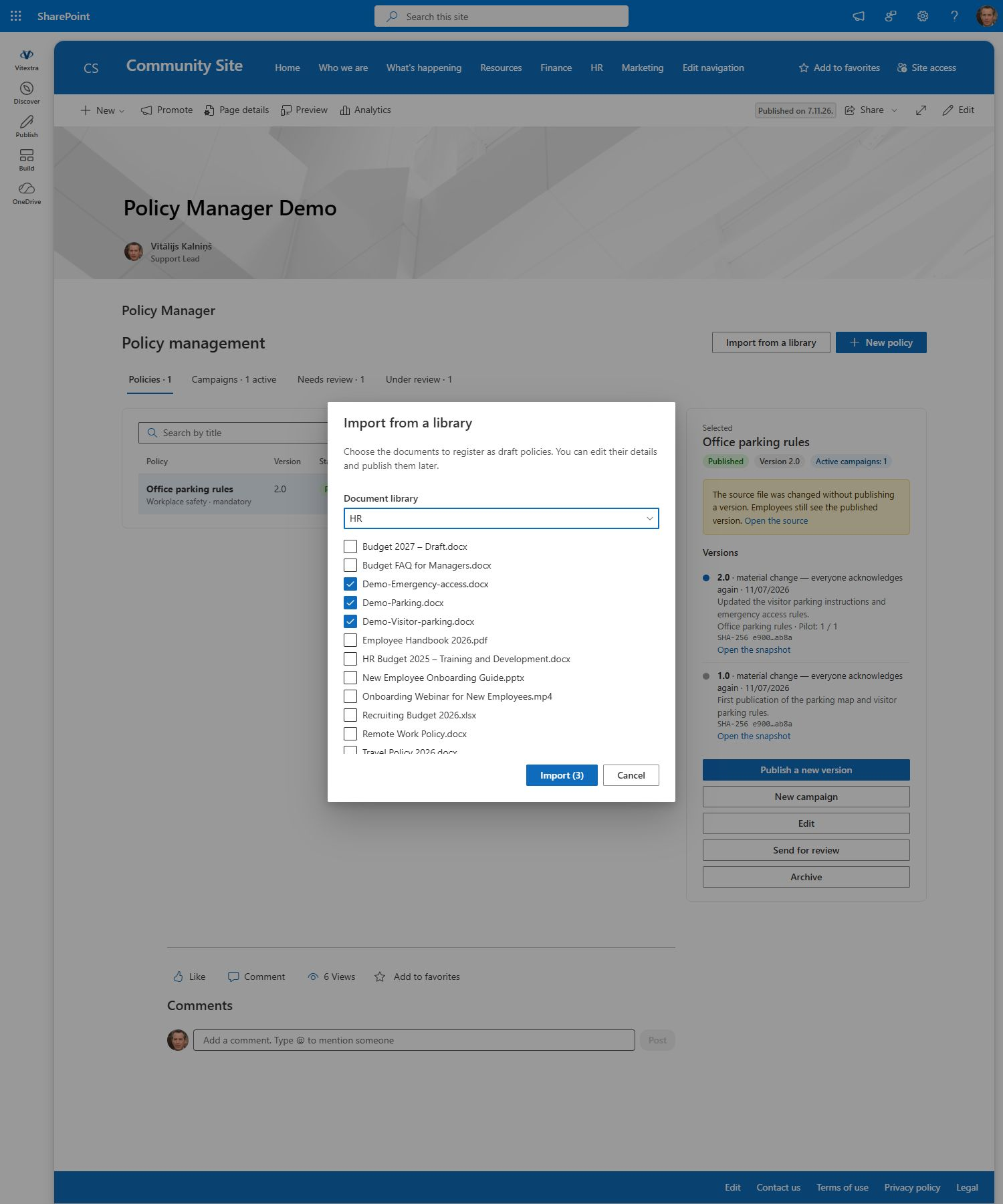
- Open Policy Manager and choose Import from a library. The same operation is available at the final step of the setup wizard.
- Select Document library and wait for the file list to load.
- Select the checkboxes for the files you want to register. Start with a small batch so that you can inspect the result.
- Select Import and wait for the operation to finish. The button shows the selected count.
- Note the reported number of imported cards and close the dialog when complete.
The dialog retrieves up to 500 file items, ordered by file name, without paging through additional results. If a file is not offered, check the selected library and this limit. It is not evidence that the file does not exist or that another file type is unsupported.
Review the created drafts
The import uses the file name without its extension as the title, stores the file URL, selects the Document source type and creates a mandatory draft with default reading controls. Description, acknowledgement text, tags and review dates are not populated from the document's business meaning.
Current import entry points pass no owner into the operation. Do not assume that the importing user becomes the owner. Open each draft and select its owner, review the category and importance, complete the description and dates, and set suitable reading controls. Drafts without an owner may not appear in an author's owner-filtered view; an administrator or compliance manager can complete them.
Avoid duplicates and partial-import mistakes
❗ Important
The importer does not check whether a policy card already points to the selected file. Repeating the import can create duplicate cards. Files are processed one at a time, so an error can leave some drafts created even when the whole batch did not finish. Inspect the policy list before retrying; select only the files still missing.
If the result seems empty, select the draft or all-status filter and check as an administrator. Confirm the hub and clear title/category filters. Do not launch a campaign against an unintended duplicate just because its file name looks correct.
Turn imported cards into a managed collection
Importing a library is an inventory step. The file name supplies a starting title, but it may include internal codes or wording that employees will not recognize. Review the title and description so that an employee can distinguish the policy before opening the source. Do not assume the import has inferred importance, organizational scope or responsibility from the document text.
Assign owners before asking authors to maintain the drafts. Since the import does not supply an owner, an author's filtered view may not contain the new cards even though an administrator can see them. Agree which owner will handle questions and later review the content, rather than merely selecting someone to make the card appear in a list.
For each draft, check category, confirmation wording, reading controls and review date. If a category provides an appropriate statement, verify that fallback in the reader; otherwise provide suitable policy-specific wording. Source access is a separate check: registering a file does not change who can read its library.
Reconcile a batch before retrying
Suppose you select a small group of files and an error appears partway through import. First inspect the draft list and compare the cards' source URLs with the selected files. A matching title alone is not enough to distinguish a valid card from a duplicate, especially when libraries contain similarly named files.
Keep a simple review record with the source URL, created card identifier, assigned owner and publication readiness. This is a suggested administrative check, not an additional import feature. It helps you select only genuinely missing files for a retry and avoid publishing duplicate cards for the same source.
If a desired file is outside the selector's loaded window, use the library and item-count checks to establish why it is absent. Do not repeatedly run the same selection hoping that it automatically pages through the rest. For content outside the available hub libraries, create the individual card through the normal policy form.
Finish the batch in stages: reconcile created drafts, complete their metadata, verify sources, then publish and distribute the approved items. A successful import count measures cards created, not policies reviewed or employees assigned.
Publish and verify
Once the card metadata and source access are correct, publish its first version using KB10502. How to Publish the First Version of a Policy. Create a separate campaign using KB10503. How to Create and Launch a Policy Acknowledgement Campaign and verify one employee assignment. Keep a record of which imported cards were reviewed so that a large preparation batch is not confused with a completed rollout.