Policy Acknowledgement
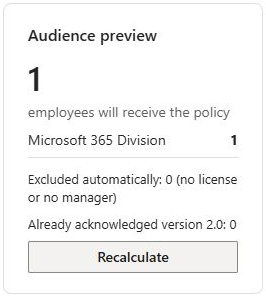
The audience preview is the checkpoint between defining rules and creating assignments. Use it to verify who is selected and whether the selection matches the intended rollout. Its total is a candidate count, not a guarantee that the same number of new assignments will be created.
Prepare a reviewable audience
In the campaign wizard, select the intended policy and version before reviewing the audience. Add groups or individuals and complete the attribute and exclusion rules. For a small pilot, explicitly include a small population; leaving all selection inputs empty starts from the eligible directory population.
Candidate lookup uses enabled Member accounts and does not include guests. Group selection and attribute matching are explained in KB10504. How to Configure a Policy Campaign Audience. Remember that manually added users bypass attribute conditions but not explicit exclusions or the enabled no-license/no-manager exclusions.
Recalculate and inspect the preview
- Open the audience step and wait for loading to finish.
- Select Recalculate after changing the policy, version or audience.
- Check the total against the expected business population.
- Review the department distribution for unexpected departments or missing groups.
- Review automatic exclusions, manual exclusions and the already-acknowledged count.
- Resolve loading or lookup errors before proceeding to the final launch step.
The preview is a calculation from the currently loaded directory and assignment data. It is not a permanently frozen membership snapshot for future always-on processing. A later directory change requires another calculation or the separately operating service; the page is not continuously running that background work.
Interpret the counts correctly
| Preview information | Interpretation |
|---|---|
| Total | Users remaining after selection and exclusion rules. |
| Department distribution | Breakdown of that selected population using directory department values. |
| Automatic exclusions | Candidates removed by the applicable enabled/license/manager checks. |
| Manual exclusions | Candidates removed by the explicit exclusion list. |
| Already acknowledged | Selected users with an acknowledged assignment for this policy version. |
Users that do not match attribute rules are filtered out; they are not counted as automatic exclusions. Directory filtering can exclude accounts before the audience resolver receives them. Do not attempt to reconcile every directory account by adding only the displayed exclusion counts.
Explain a smaller launch count
At launch, the product checks assignments for the policy across campaigns. It skips a selected user who already has a nonexempt assignment for the same version, including assigned, overdue, acknowledged, paused or review-required records. The preview's acknowledged count describes only one part of that skip population.
For example, a preview can include 10 people, with 2 already acknowledged and 3 more holding open same-version assignments. The new-assignment count can then be 5. Do not launch another campaign merely to make its count equal 10; the same duplicate check still applies.
📝 Note
An exempt same-version assignment is not itself included in the skip set. A user can still be skipped if another nonexempt same-version record exists. Inspect the person's assignments when a result differs from expectations.
Review representative people, not just the total
A plausible total can hide the wrong population. Before launch, identify examples of people who should be included, excluded and treated as an exception. Compare their group membership, attributes and explicit inclusion/exclusion settings with the intended business rule. A department breakdown is a useful signal, but does not replace checking how the selection was produced.
For example, a group may contain members from several departments, and a department condition narrows that group. If an expected employee belongs to a different group, sharing the same department does not add them to the selected candidates. If a named additional user is outside the attribute rule, the manual inclusion can still admit them, subject to exclusions. Review these edge cases before treating a matching overall number as sufficient.
Investigate an unexpected preview in order
| Unexpected result | Check first |
|---|---|
| The population is much larger than intended | Empty selection inputs, rules without values and a directory-wide attribute selection. |
| A whole department is absent | Candidate group membership and the actual directory department value. |
| A named exception is absent | Explicit exclusions and the enabled license or manager exclusions. |
| The total looks correct but new assignments are fewer | Existing nonexempt assignments for the selected version across campaigns. |
| A recently changed employee still has old data | Whether the page is using previously loaded directory information. |
After a correction, recalculate and recheck the example accounts. If directory data was changed during the session and the result remains stale, reload the page and reconstruct the intended configuration as needed. Do not assume that pressing the calculation button bypasses every cached directory lookup.
Record the reviewed policy version, audience rules and expected new-assignment outcome before launch. The saved campaign preserves configuration, but the preview is not a permanent roster for every future service run. If always-on processing is required, test a later membership change separately through the deployed service rather than extrapolating from this initial preview.
Complete the launch review
On the final step, recheck the version and deadline as well as the audience. After launch, record the number created and verify representative employee assignments. If an error occurs during launch, inspect existing campaign and assignment records before retrying because the operation is not one atomic transaction. See KB10503. How to Create and Launch a Policy Acknowledgement Campaign and KB10536. Troubleshooting Missing Policies, Employees and Assignments.