Policy Acknowledgement
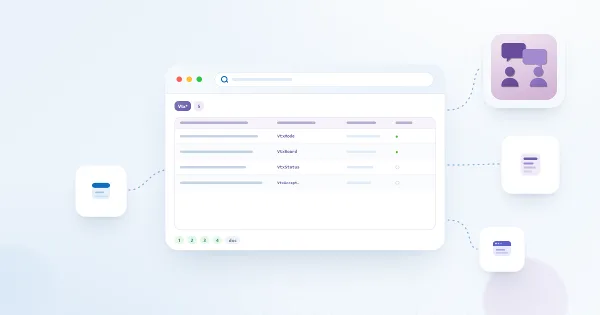
Pending Policies Bar is a compact intranet prompt for employees who have assigned or overdue policies. It shows a pending count, overdue information and a navigation button without replacing the full My Policies page. Use it on a frequently visited page to make outstanding work easier to discover.
Add and connect the web part
- Edit the intended SharePoint page with an account allowed to modify it.
- Add Pending Policies Bar.
- In Connection, set Policy hub site to the hub used by the policy application.
- Set Policy Reader page to a working Policy Reader page and configure the administration link if needed.
- Under display settings, set My Policies page when the button should open the full personal task list.
- Save and publish the page, then test it as an employee with a known pending assignment.
Without a My Policies page URL, the button opens the first pending assignment through the configured reader URL. If the reader URL is blank, the default is SitePages/PolicyReader.aspx on the resolved hub. The default page must exist; the banner does not create it.

Understand the displayed count
The bar loads the current user's assignments and includes only assigned or overdue states. It sorts them by due date, placing undated items later. It displays the earliest available deadline and changes its visual cue when overdue work is present.
With one pending assignment, the action uses Open. With more, it uses Show policies. When no My Policies URL is configured, either label still leads to the first pending assignment; the plural button does not create a separate list page.
My Policies also includes review-required and paused assignments in its pending tab. The banner does not include those states. A smaller banner count can therefore be correct. Compare actual statuses before treating the difference as missing data.
Understand empty and failed states
In normal display mode, an empty bar renders no content and takes no visible space. In page-edit mode, the editor sees a placeholder so that the web part can still be selected and configured. The editor's own assignment population may differ from the target employee's.
❗ Important
The bar also hides when hub resolution or assignment loading fails; its implementation records the error internally rather than displaying a full error panel. A missing banner is not proof that the employee has no outstanding work. Check My Policies and hub access when the expected prompt is absent.
Test navigation and maintain the page
Open the published page with a pilot employee account, compare the included assigned/overdue records with My Policies, and click the button. Confirm the correct policy or personal page opens and source permissions work. Complete a pilot assignment and reload the intranet page to verify the refreshed count; the bar is not a live background push feed.
If the prompt is missing unexpectedly, verify the hub, the account used for lookup, source data and browser error details with an administrator. The bar uses the page-context login identifier, which can differ from the directory UPN used by other views in some contexts. Preserve that distinction when support investigates. Hiding the banner through page targeting does not change assignment or data permissions.