Policy Acknowledgement
Team Compliance gives a manager an employee-by-policy view with overdue follow-up actions. It uses Microsoft Entra ID reporting relationships rather than a manually entered list of team members. Start by confirming the team population; a correct-looking percentage is not useful if the wrong people or assignments are included.
Open the appropriate team scope
- Open the page containing Team Compliance with the manager's account.
- Select Direct reports for immediate reports or All direct and indirect reports for direct and indirect reports.
- Check the employee count and names against the expected directory hierarchy.
- Review whether policies and assignments have loaded for those employees.
Direct scope loads current direct reports and retrieves assignments whose stored manager matches the current manager. Whole-branch scope obtains the reporting branch and filters assignments by the resulting employee accounts. A recent manager change can therefore affect the two scopes differently: the directory may already show the new manager while an older assignment still stores the former manager.
Policy Admin has a whole-branch setting, but this component currently displays both scope choices without using that setting to enforce access. Treat it as a known implementation limit, not a guarantee that indirect-report data is inaccessible. Verify effective SharePoint permissions separately.
Read the employee-policy matrix
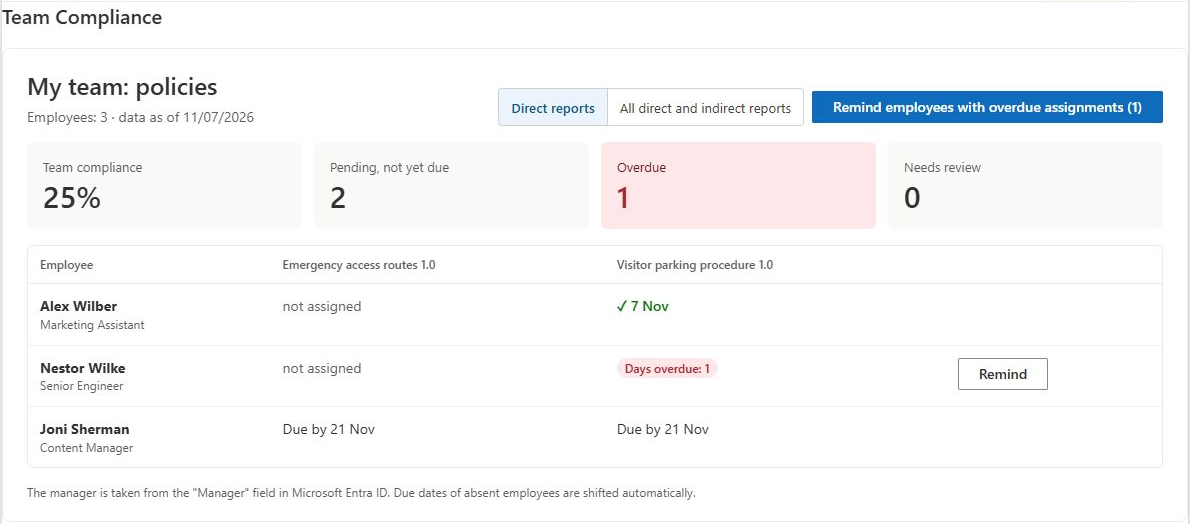
Each row is an employee and each column represents a policy found in the loaded assignments. Cells show the latest assignment by record ID for that employee and policy. They can show a confirmation date, days overdue, due date, review-required state, pause, exemption or no assignment.
The column's displayed version is taken from an encountered assignment; it is not an independently selected reporting version for every cell. If several versions or campaigns exist, inspect the underlying assignments before interpreting a cell as the current published-version position.
An unassigned cell means no matching assignment was found in the loaded scope. It does not prove that the employee is exempt or that the policy is irrelevant. Assignment creation and audience decisions are managed through campaigns.
Interpret the indicators
Team compliance is acknowledged assignments divided by included assignments, excluding exempt and paused states. Pending-on-time, overdue and review-required indicators are assignment counts. One employee can contribute several assignments.
The matrix displays the latest record per employee/policy, while the indicators aggregate the loaded assignment set. A simple count of visible cells may not reproduce the KPI when multiple historical assignments exist. Use an assignment export or the administrative report to investigate the difference.
Follow up on overdue work
Use Remind on an employee row for that person's overdue assignments or Remind employees with overdue assignments for the loaded overdue population. Read KB10524. How to Send Manual Policy Reminders to Your Team before bulk sending: messages are sent per assignment from the current user's mailbox, and partial failures can leave some messages already sent.
❗ Important
The displayed manager guidance mentions automatic deadline shifts for absent employees, but the reviewed web parts do not implement that behavior. Do not assume an absence extends deadlines or suppresses follow-up. Verify any separately deployed service before relying on such automation.
Use the matrix for a focused team review
Start with a known employee and a known policy before reviewing the entire team. Confirm that the employee belongs to the selected reporting scope and that the policy column represents work actually loaded for the team. Open or investigate the relevant assignment when the cell differs from what the employee reports.
For example, an employee can have an acknowledged earlier assignment and a more recent open assignment for the same policy. The matrix chooses the latest assignment by record ID for that employee-policy pair. The open cell does not necessarily mean the earlier confirmation was lost; it can represent a different version or campaign context. Compare the assignment identifiers and versions before requesting another confirmation.
The column's version label is not a universal version filter applied independently to every cell. When a team has mixed historical assignments, inspect the details before describing the whole column as completion of one specific release. The dashboard and assignment export can help reconcile the underlying population.
Reconcile a reorganization before following up
After an employee moves to another manager, the directory relationship may change before the manager value stored on existing assignments. Direct-report and whole-branch lookups use different paths, so their results can differ during that transition. A missing task in one scope is not sufficient evidence that the employee has no assigned work.
Compare the employee's personal assignments with the directory manager and the stored assignment manager. Ask the administrator to investigate a mismatch rather than adding an employee to unrelated groups or changing policy ownership as a workaround. Those settings control other parts of the system.
Before a bulk reminder, check the loaded overdue set and whether review cases need an owner decision instead. Remember that messages are sent per overdue assignment, not as a single consolidated message per employee. Explain the follow-up in terms of the actual outstanding work, and check partial-send errors before repeating the action.
Diagnose missing people or assignments
Check directory manager fields, API access, the selected scope, hub and stored assignment manager. Compare a known employee's My Policies view with the manager report. For recent reorganizations, preserve the old and new relationship context when asking support to investigate. A page refresh reloads the view; it does not rewrite historical manager fields on assignments. See KB10536. Troubleshooting Missing Policies, Employees and Assignments.