Policy Acknowledgement
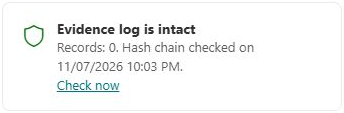
The integrity check recomputes hashes for the acknowledgement records and verifies their links to preceding records. It can help detect inconsistencies in the loaded evidence chain. It does not establish that every required event exists, that an employee understood a policy or that the live source still matches a published version.
Prepare the check
Use an administrator account that can read the acknowledgement list and update product settings and the audit log. The dashboard may be visible to an auditor, but the check saves its result and writes an audit event; read-only access can therefore cause an error after the records have been examined.
If you are investigating suspected damage, preserve the relevant records and identifiers before making changes. Avoid editing evidence, resetting hashes or deleting records as a way to obtain a green result. Coordinate the check with the owner of any service that writes confirmations.
Run verification
- Open Compliance Dashboard on the intended hub.
- Locate the evidence-integrity panel.
- Review the last saved result, record count and check time. An old result is not a live guarantee for newly added records.
- Select Check now and wait for the operation to finish.
- Record the new result and timestamp, including the first damaged-record identifier if one is reported.
The check loads the acknowledgement log in ascending record-ID order. It recomputes each record's hash and compares the stored previous-hash link with the preceding record's hash. It concerns the log on that hub, not only the department or policy currently displayed by the dashboard filters.
Interpret the result
| Result | Meaning |
|---|---|
| Not verified | No saved verification result is available. |
| Intact | The records loaded for this check had matching hashes and preceding links. |
| Failed | A hash or previous-link mismatch was found; the first affected record is identified. |
| Operation error | The read, calculation or result-saving operation failed; do not treat it as a completed clean check. |
The displayed record count is the loaded log size. When the loop stops at the first mismatch, that number should not be read as proof that every later record was individually validated. An empty log can pass the consistency calculation without proving that any acknowledgement exists.
Understand the protection limits
The chain can reveal a changed record or a missing middle record whose successor still points to it. Without an independently retained trusted endpoint, removing a suffix of the log or replacing a whole chain is not necessarily detectable by this comparison alone. Concurrent direct writes can also create chain inconsistencies that need investigation rather than an immediate assumption of malicious editing.
❗ Important
The UI's brief wording about proving that no record was changed or removed is broader than this check guarantees. A green result is chain consistency for the loaded data, not absolute immutability, completeness, legal validity or proof of exact source content shown to an employee. Effective permissions and recording mode remain essential; see KB10509. Policy Acknowledgement Data Storage: Direct and Service Modes.
Investigate a failure
Preserve the first reported record ID, previous record, hashes, check time and recent workflow activity. Inspect related audit events and any service errors with an administrator. Do not repair the chain by manually replacing stored hashes. If the cause is uncertain, provide support with identifiers and sanitized error details, and keep the original evidence available for investigation. See KB10538. Troubleshooting Failed Acknowledgements and Missing Notifications for recording failures that can leave partial records.