Policy Acknowledgement
The audit log records selected administrative and operational actions in Policy Acknowledgement. It helps an administrator establish who launched a campaign, changed settings or published a version. Employee confirmations are stored separately in the acknowledgement log, so an audit export alone is not a complete evidence package.
Open the correct log
- Open Policy Admin connected to the hub you want to investigate.
- Sign in with an administrator account that can read the audit list.
- Select Audit log.
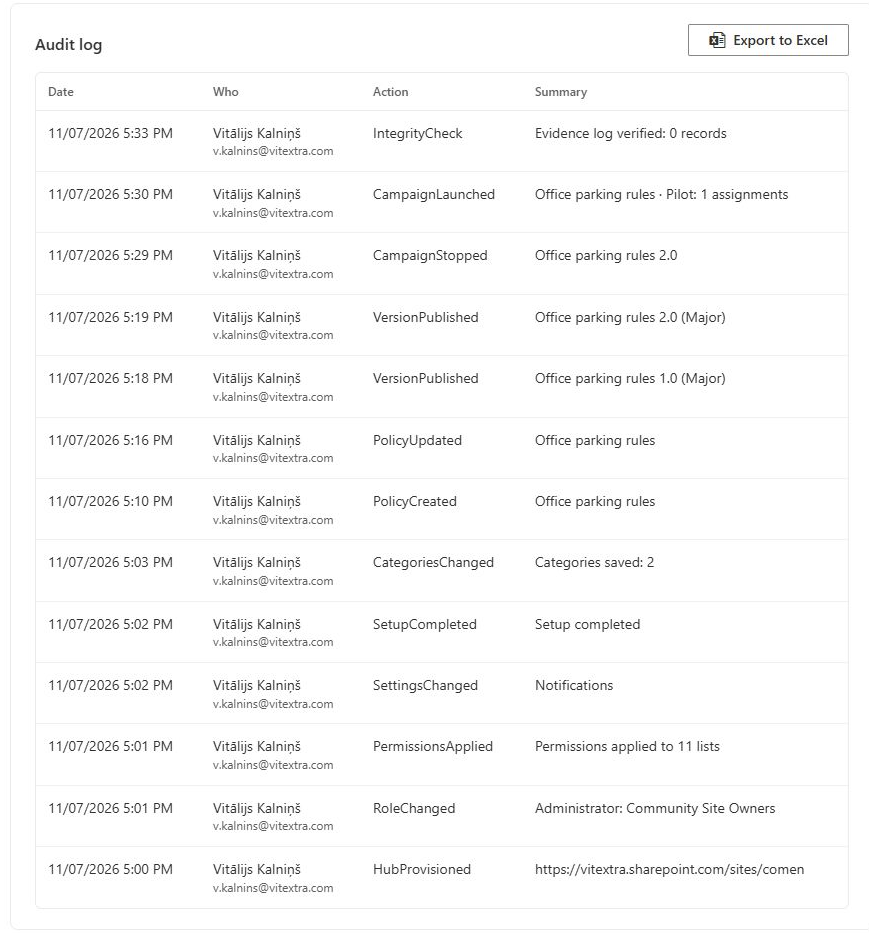
- Review the event time, actor, action and summary. Confirm that the policy, campaign or other identifier relates to your investigation.
- Compare the event with the current policy or campaign record rather than assuming the summary describes its present state.
The tab loads the latest 500 entries in descending record-ID order. It has no paging control for retrieving the rest of the history. This is a display and export limit, not a statement that older records are automatically deleted from the underlying list.
Interpret the events
Events cover operations such as policy creation and updates, version publication, status changes, review confirmation, campaign launch and stop, reminders, role and permission changes, settings, categories, provisioning, integrity checks and report export. Action identifiers and stored summaries may remain in the language in which they were written; changing the interface language does not translate historical event data.
Read the timestamp together with the record identifier and actor. The interface uses the event timestamp, falling back to the item's creation time where necessary. An event indicates that the application attempted or recorded the associated operation; assess the underlying records when determining the final outcome.
❗ Important
Business updates and audit writes are separate operations. A policy or campaign change can succeed even if the subsequent audit write fails. Conversely, the absence of an event from the latest 500 entries does not prove that the action never happened. The tab is not a complete SharePoint security or change log.
Export the loaded entries
Select Export to Excel and save the workbook in an approved location. The file name follows PolicyAuditLog_YYYY-MM-DD.xlsx. The export includes the loaded events and adds the actor account and serialized details to the information visible in the table.
Inspect the details column for identifiers and context that do not fit into the summary. Treat these values as recorded application data, not a reconstructed history of every field change. Check the oldest exported event before describing the workbook as covering a requested period.
If the investigation needs events outside this window, ask the administrator responsible for the hub to retrieve the relevant underlying records using an approved method. There is no full-history export button in this tab. Preserve the original workbook and document any filters or extracts prepared from it.
Build an investigation record
Record the hub URL, export time, affected record identifiers, observed error and relevant event times. Compare campaign events with assignments, publication events with version history and employee confirmations with their receipts and acknowledgement records. A normal acknowledgement should not be considered missing merely because it is absent from this administrative tab.
Avoid editing or deleting log entries to correct a business mistake. Correct the underlying configuration or workflow through its supported interface and retain the prior evidence. Restrict access to exports because actor accounts and details can contain employee information.
💡 Tip
For employee receipt details, see KB10526. How to View Previous Policy Acknowledgements and Receipts. For the separate hash-chain check, see KB10533. How to Check the Integrity of the Acknowledgement Log. An audit export and an integrity result answer different questions and should be interpreted together with the underlying business records.