Policy Acknowledgement
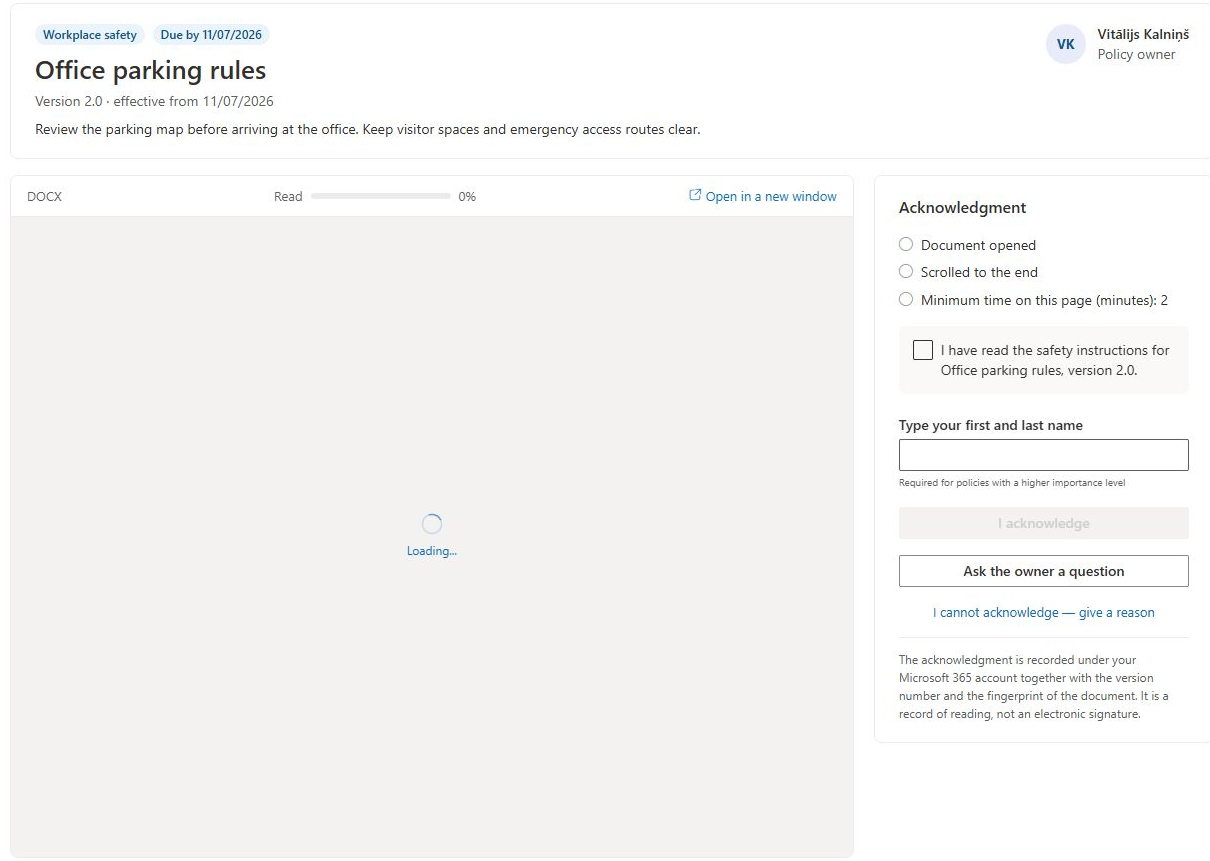
An unavailable document preview does not necessarily mean the policy assignment is missing. Likewise, a disabled acknowledgement button may be waiting for a reading requirement, the confirmation checkbox, a typed name or the configured writing service. Diagnose these conditions separately so that the employee can read the correct content before confirming it.
Verify the source and assignment
Open the policy from the employee's assignment and check its title, version and due date. Select Open in a new window to test the source with the same account. If the source is denied or missing in a separate window, ask the owner to correct its URL or permissions; access to the policy hub does not automatically grant access to every source.
Office files, PDF files, inline SharePoint pages and external pages use different preview mechanisms. An external site may refuse to load inside a frame even when it opens normally in another window. A moved file or unsupported preview can also leave the embedded area empty. Do not confirm unread content simply because the interface allows it.
Inspect the reading checklist
- Keep the Policy Reader tab visible while reading; time is not accumulated while the browser marks the document as hidden.
- Open the content and check that the opening requirement is satisfied.
- For an inline SharePoint page, scroll the content area to its end. A short page that fits in the area can satisfy the requirement without manual scrolling.
- Wait for any configured minimum reading time.
- Select the checkbox next to the acknowledgement statement after reading it.
- If a typed name is requested, enter the name expected for the signed-in account and check for a mismatch.
For non-page content, the scroll requirement can be satisfied after the viewer has been opened for at least 30 seconds or the configured minimum time, whichever is greater. This is a fallback for content whose internal scrolling cannot be measured; it is not proof that every page was read. A SharePoint page that fails to render inline does not receive this non-page fallback.
Check state-specific messages
If the reader says that the policy is not assigned, return to the employee's personal assignment list. A library preview without an assignment is not an acknowledgement task. A policy opened only by its card identifier can lead to a different result than the intended assignment link.
An assignment awaiting review displays its review message instead of the usual submission panel. An exempt assignment is not waiting for employee acknowledgement. An existing receipt displays the recorded confirmation. The owner must resolve a review case through the appropriate workflow; an employee cannot clear that state by repeatedly reloading the reader.
When service writing is selected, the reader blocks acknowledgement if the service URL is missing or administrator consent is not recorded. An administrator should check service configuration using KB10525. How to Connect the Policy Service and Configure Automatic Notifications. Correct configuration is necessary, but it does not guarantee that a subsequent network request will succeed.
❗ Important
The progress indicator and reading checks do not establish comprehension or independently verify the exact bytes viewed. Do not remove controls merely to make an unexplained error disappear. First distinguish inaccessible content, an incomplete requirement and a service or assignment-state problem.
Match the symptom to the next diagnostic step
| Symptom | Next step |
|---|---|
| Neither preview nor separate-window source opens | Check the URL, source existence and the employee's source permissions. |
| Separate-window source opens but the frame is blank | Investigate preview or framing behavior without assuming the employee lacks all access. |
| Opening is complete but time is not | Keep the reader visible and verify the configured minimum. |
| Inline-page scrolling is incomplete | Scroll the content container and check whether the page actually rendered inline. |
| Reading checks are complete but submission remains unavailable | Inspect the statement checkbox, typed name, current assignment state and service warning. |
| Submission starts and then fails | Investigate the save path and possible partial result rather than continuing to adjust reading controls. |
Work through the relevant row using the same employee account and assignment. Changing several settings at once can hide which condition was responsible and leave the intended control weakened. If you change a policy control deliberately, reload a pilot reader and verify the resulting behavior before applying the decision broadly.
Distinguish a long wait from a blocked workflow
An employee can satisfy every reading condition and still be unable to submit because the assignment is awaiting review. Waiting longer will not resolve that state. The owner needs to address the reported issue and reopen or otherwise resolve the assignment as appropriate.
Conversely, a normal assigned task can be waiting only for its statement checkbox or a correctly entered profile name. Inspect those inputs after reading the statement; do not mistake every disabled button for a service outage. A visible service-configuration warning calls for an administrator check, whereas a later network error belongs to the submission investigation.
When reporting the problem, include the assignment link, source type, exact incomplete condition and whether the separate source works. Mention any recent source, control or version change. This lets support compare what the reader loaded with the expected policy state without asking the employee to repeat an unsuccessful confirmation blindly.
Escalate with useful details
If the content contradicts the employee's duties or cannot reasonably be acknowledged, use Ask the owner a question or I cannot acknowledge — give a reason as appropriate; their workflow effects differ, as explained in KB10527. How to Ask a Policy Question or Report That You Cannot Acknowledge. For a technical issue, provide the policy and assignment identifiers, source type, incomplete checklist item, exact message and whether the source opens separately. If submission starts but fails, continue with KB10538. Troubleshooting Failed Acknowledgements and Missing Notifications.