Policy Acknowledgement
A failed confirmation and a missing notification can occur independently. An employee may have a valid assignment without receiving an email, and a confirmation request may write evidence before a later step fails. Establish which operation failed before retrying or changing the writing mode.
Preserve the failure context
Record the hub, employee account, policy version, assignment identifier, error text and approximate time. Ask whether the employee saw a receipt or a success message before the error. Reload My Policies and reopen the assignment to inspect its current state. Avoid repeated clicks while the first request is still being processed.
For notification issues, identify whether the expected message was a manual reminder, an automatic email or a Teams notification. Record the intended recipient, campaign and time. These paths do not all use the same sender or implementation.
Diagnose a failed confirmation
In direct mode, the browser reads the preceding hash, appends an acknowledgement record and then updates the assignment. These writes are separate. Permission, connectivity or list errors can interrupt the sequence, leaving evidence without the expected assignment status.
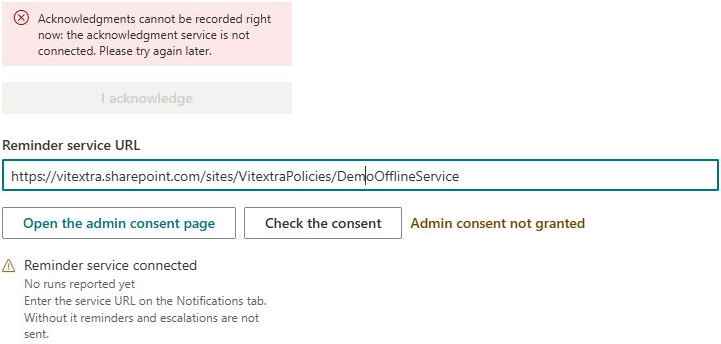
In service mode, the browser posts to the configured /api/acknowledge endpoint using the service connection and then reads the resulting record from SharePoint. The request can fail because of service availability, authentication, consent, response format or access to the saved record. A read failure after a successful service write is different from a request that never reached the service.
An administrator should compare the assignment's acknowledgement reference and status with the corresponding evidence record, using the account, policy version and time to investigate. Do not edit evidence hashes or delete a record to make a retry look clean. If a partial save is confirmed, agree on a controlled correction with the person responsible for the hub or service.
❗ Important
A failed service request does not automatically fall back to direct writing. Switching modes changes the permissions and evidence-writing path; it is not a harmless retry option. A second submission can also create additional evidence if the first operation partially succeeded.
Diagnose missing manual reminders
Manual overdue reminders are sent through the signed-in user's mailbox. Check that account's ability to send mail and inspect its sent messages where available. The configured automatic-notification sender and quiet hours do not control this manual path.
Messages are sent sequentially for assignments. A bulk operation can send some messages and then fail; an audit write can also fail after sending. Determine which recipients or assignments were already processed before repeating the whole action. See KB10524. How to Send Manual Policy Reminders to Your Team for the manual reminder workflow and its limits.
Diagnose missing automatic messages
- Verify that the expected assignment exists; an audience preview is not a completed launch.
- Check the relevant email or Teams notification settings and configured quiet hours.
- Confirm the service URL and administrator consent status.
- Review the reported last-run information, then ask the service owner to inspect the actual job and delivery results.
- Verify the recipient account and investigate delivery separately from assignment creation.
The status endpoint can report consent and a last-run value, but a successful check does not prove that a notification job ran for this campaign or delivered a message. Saving notification preferences does not deploy the external service. The supplied personal Teams app does not, by itself, establish that a notification bot is installed.
Reconcile the visible outcome before retrying
| What you observe | What the administrator should inspect |
|---|---|
| The employee received a receipt, but a campaign counter is stale | Assignment and evidence state first; counter refresh is a separate operation. |
| An evidence event exists, but the assignment remains open | Whether the assignment update failed after the evidence write. |
| Service reports a saved record, but the reader shows an error | The returned record identifier and the client's ability to read it. |
| Some manual reminders arrived before a bulk error | Which assignment messages were sent before the failure. |
| An assignment exists but no automatic message arrived | Service execution and delivery, separately from assignment creation. |
Do not infer a complete transaction from one indicator. A success in the service log, a row in SharePoint, a receipt in the browser and an updated campaign count describe different stages. Match them using the assignment, policy version, account and time instead of relying only on a policy title shared by several releases.
If a second submission has already been attempted, tell the administrator that fact and provide the approximate times. Preserve the records while the sequence is investigated. Deleting an apparently duplicate evidence event can break the chain or remove context needed to understand the original failure.
Prepare a focused support handover
Provide the failing operation, writing mode, hub and page, affected account, policy version and assignment identifier. Include the exact error and whether the source could be read, the submission button became available and a receipt appeared. For service cases, ask the service owner to correlate the time with the request and result; do not include authentication tokens or secrets in the handover.
For missing messages, identify the expected path: a manual reminder, an automatic email or Teams delivery. Include what has been verified about the assignment and sender or service run. A saved notification preference is not delivery evidence, and a message in one channel does not prove the other channel succeeded.
After the identified fault is corrected, test one controlled operation and inspect its full result before repeating a bulk action. This verifies recovery while keeping the cause and any remaining partial records understandable. Preserve the original incident details so that a successful retry does not erase the explanation of what happened earlier.
Verify recovery
Use one known assignment to confirm that a successful acknowledgement produces the expected receipt and assignment status. For notifications, verify the intended delivery path with the service owner or sender and then check the employee's access to the assignment. Keep the original error and any partial-write findings in the investigation record. See KB10525. How to Connect the Policy Service and Configure Automatic Notifications for service configuration and KB10526. How to View Previous Policy Acknowledgements and Receipts for receipt interpretation.