Ce contenu n’est pas disponible dans votre langue.

This article describes how to install a Vitextra product in a SharePoint on-premises environment using the product installation wizard.

❗ Important
This guide covers the installation of Vitextra farm solutions in an on-premises environment (SharePoint Server).
For cloud-based solutions for Microsoft 365 (SharePoint Online, Microsoft Teams), see the Installing Cloud-based Product article instead.

Prerequisites

SharePoint Services

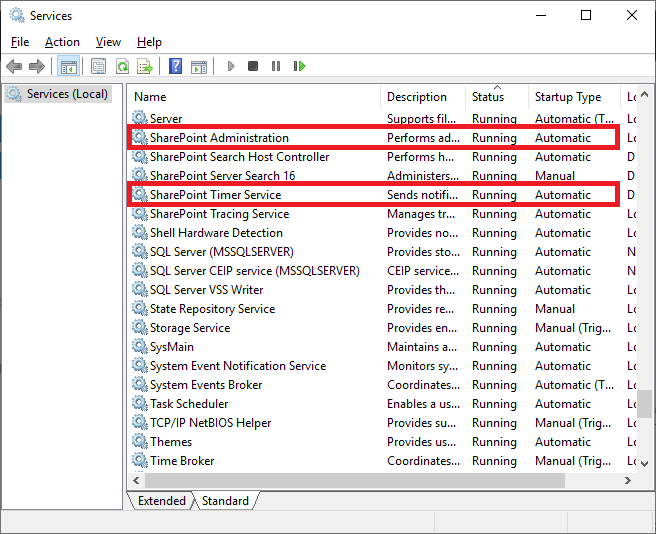
Before you begin, make sure these services are running on the SharePoint Server:

  • SharePoint Administration
  • SharePoint Timer Service

Services running on the server

Services running on the server

Required Permissions

To perform the installation, you need the following permissions:

  • Membership in the local server's Administrators group.
  • Membership in the Farm Administrators group.

Installation Package

Download the product's ZIP file (*.zip) from the downloads page and extract it on the SharePoint front-end server where you'll run the installation.
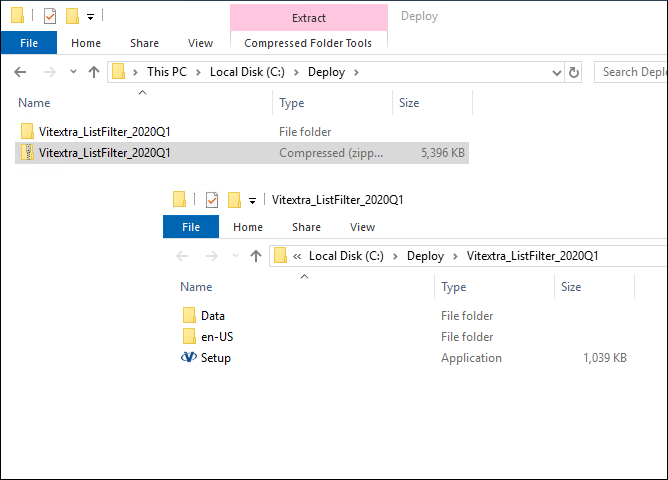
Extracted installation package

Extracted installation package

❗ Important
Do not install Vitextra .wsp files directly with PowerShell or STSADM.

Installation

Open the folder with the extracted installation package and run Setup.exe.

📝 Note
If the setup file doesn't run, right-click Setup.exe and select Run as administrator.

The installation wizard appears, as shown below:
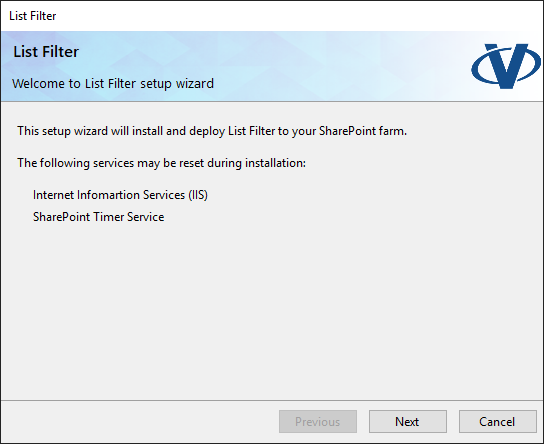
Installation Wizard

Installation Wizard

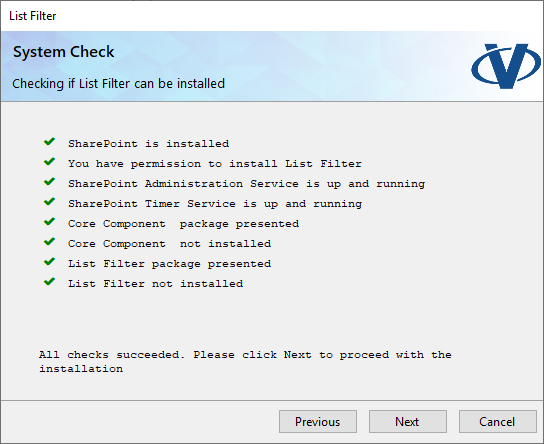
Click Next to start the system check, which verifies that the server meets all requirements for installing the product. When the check finishes, click Next.
Installation Wizard

Installation Wizard

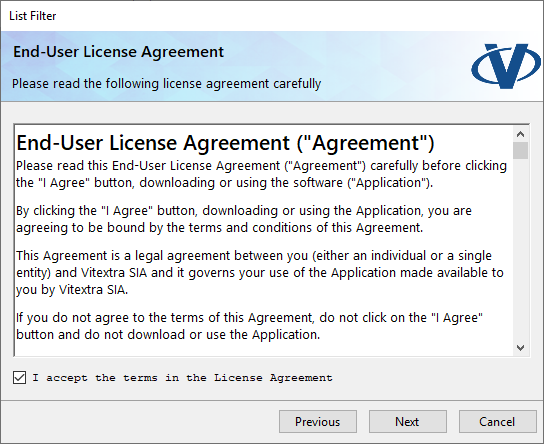
Review and accept the End-User License Agreement, then click Next.
Installation Wizard

Installation Wizard

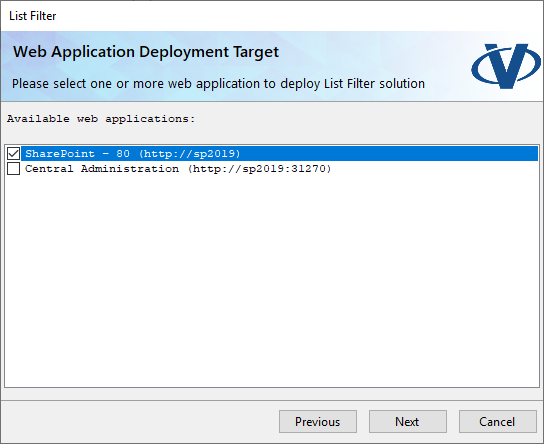
Under Web Application Deployment Targets, select the web applications where you want to install the product and click Next.
Installation Wizard

Installation Wizard

📝 Note
The Web Application selection screen may be skipped if the product contains no Web Application-scoped resources.

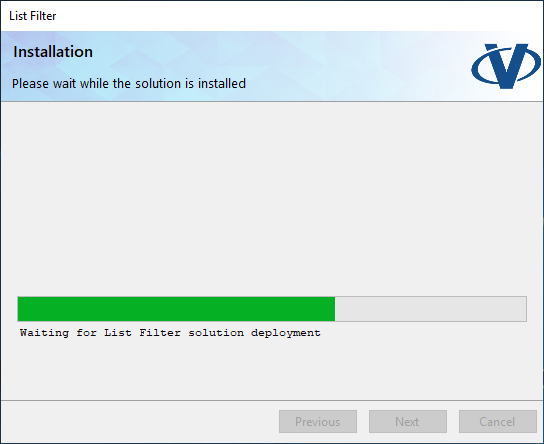
Wait while the product is installed.
Installation Wizard

Installation Wizard

When the installation is complete, click Finish to close the wizard.
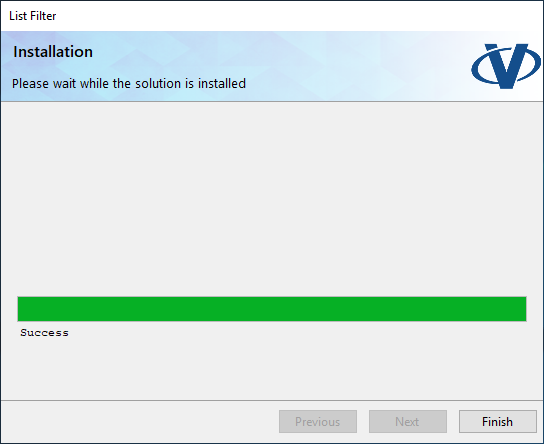
Installation Wizard

Installation Wizard

Questions et réponses

Posez une question sur cet article et obtenez une réponse officielle de notre équipe.

Aucune question pour le moment. Posez la première !

Articles à la une

Employee Details : guide rapide pour les utilisateurs finaux

Comment utiliser la page Vitextra Employee Details dans SharePoint Online : consulter le profil d'un collègue, vérifier sa présence, son heure locale et sa disponibilité, planifier une réunion, passer d'un responsable à ses collaborateurs, enregistrer un contact ou une carte de visite QR, et tenir à jour vos propres compétences, langues et profil.

95 9 min
List Filter Online et le composant WebPart Liste intégré : quelles différences ?

Comparaison pratique du composant WebPart Vitextra List Filter Online et des composants WebPart Liste et Bibliothèque de documents intégrés de SharePoint Online : filtrage, requêtes prédéfinies, pagination, colonnes, regroupement et totaux, export Excel, données inter-sites, listes volumineuses et connexions entre composants WebPart - et quand le composant intégré suffit.

101 9 min
Comment ajouter le composant WebPart Password Vault à une page et créer votre coffre-fort

Guide pas à pas pour ajouter le composant WebPart Vitextra Password Vault à une page SharePoint Online moderne : prérequis (déploiement et autorisation Graph Files.ReadWrite.AppFolder), recherche du composant WebPart dans la boîte à outils, modification du titre du composant WebPart, configuration du code PIN à la première ouverture et informations de licence dans le groupe À propos de du volet de propriétés.

25 6 min

Partager