List Filter Online
The Vitextra List Filter Online web part lets users filter and retrieve data from a SharePoint list or document library. This article describes the web part's main features and how to configure it. It reflects version 26.10 of the product.
Web Part Overview
The List Filter Online web part helps users quickly find the information they need in SharePoint lists and document libraries. It provides a flexible filtering system that narrows results by criteria such as date, author, or content, and its intuitive interface lets users adjust the view to suit their needs.
With it, you can work through large datasets and locate specific documents with ease, keeping the information most relevant to your workflow within easy reach.
Key Features
- Display data from the current site or from any other site in the tenant
- Query Builder to create complex CAML queries
- Filter pane with per-column controls to search relevant information
- Cascading filters that narrow drop-down options by the filters already applied
- Saved filters and shareable filter links, with an option to remember the user's last filter
- Column captions, display formats, and column formatting JSON from the list
- Grouping, sorting, and totals
- Export to Excel
- Open in List Filter command in list and library views that opens the selected items on a page with the web part
❗ Important
The List Filter Web Part does not support selecting an existing view. Instead, you select the columns that you want to display in the web part.
Web Part Layout
The web part combines three main elements: a command bar, a filter panel, and a results table. The results table is always visible and cannot be hidden, unlike the other two elements.
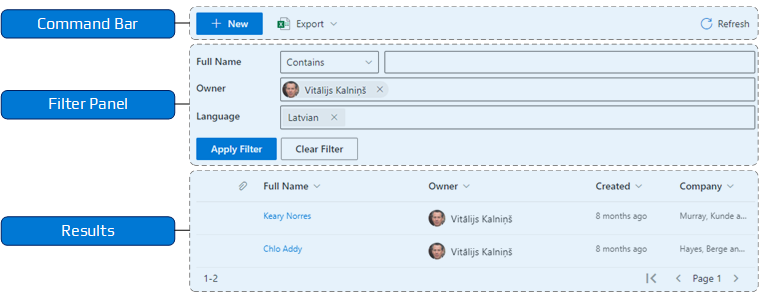
Every column header has a menu for sorting and for filtering by the column values, and every row has a context menu with item commands such as opening, sharing, downloading, viewing version history, or deleting the item.
📝 Note
List Filter Online cannot be connected to other web parts, but it can be used as a standalone tool to filter data.
💡 Tip
For an introduction to the solution, see KB10250. List Filter Online: Solution Overview. Deployment and adding the web part to a page are covered in KB10251. How to Install List Filter Online and Add It to a Page. The Open in List Filter command is described in KB10254. Opening Selected Items in List Filter Online from a Native SharePoint List.
API Permissions
The List Filter Online web part uses the native SharePoint REST API to retrieve data from lists and document libraries. As a result, it needs no additional permissions and can be deployed and used immediately.
📝 Note
The List Filter Online web part requires no API permissions and is ready to use immediately after deployment.
Web Part Configuration
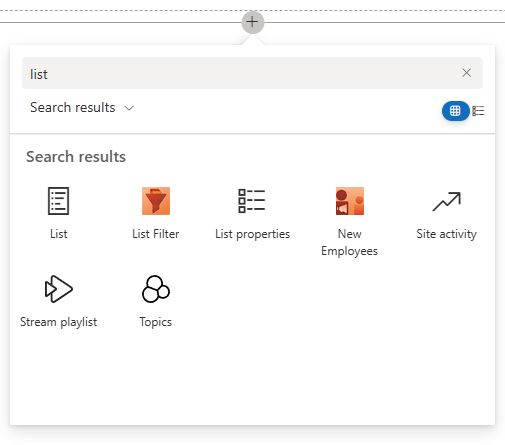
After you deploy the package, the List Filter Online web part appears in the web part gallery under the name List Filter.
💡 Tip
To deploy the web part in your environment, see the KB10035. How to Install a Vitextra Product in SharePoint Online article.
After you add the List Filter web part to a page, you'll see the following alert:
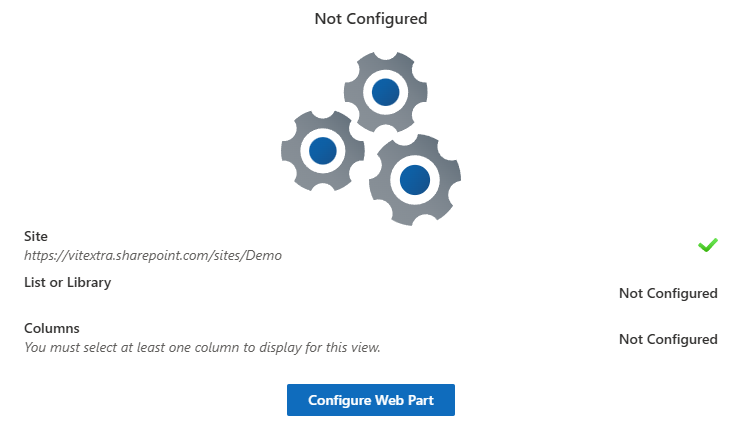
You need to provide three required parameters:
- Site. The SharePoint site that contains the list you want to display data from - the current site or any other site in the tenant.
- List or Library. The list or library that contains the data you want to retrieve and display.
- Columns. The set of columns you want to include in the list view.
To configure the web part, click Configure Web Part to open the configuration panel.
Data Source
The first section, Data Source, is where you specify where the data comes from. The web part can show information from any SharePoint site.
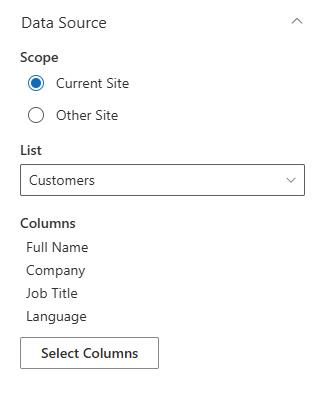
Start with the Scope option:
- Current Site (default) uses the site where the page is located.
- Other Site displays the Site URL picker. Enter the URL or name of the site in the search bar and select it from the suggestions.
Then choose a specific list or document library within that site from the List drop-down.
📝 Note
Changing the site or the list resets the selected columns, the filter pane columns, and the predefined filter, because they belong to the schema of the previous list.
Columns
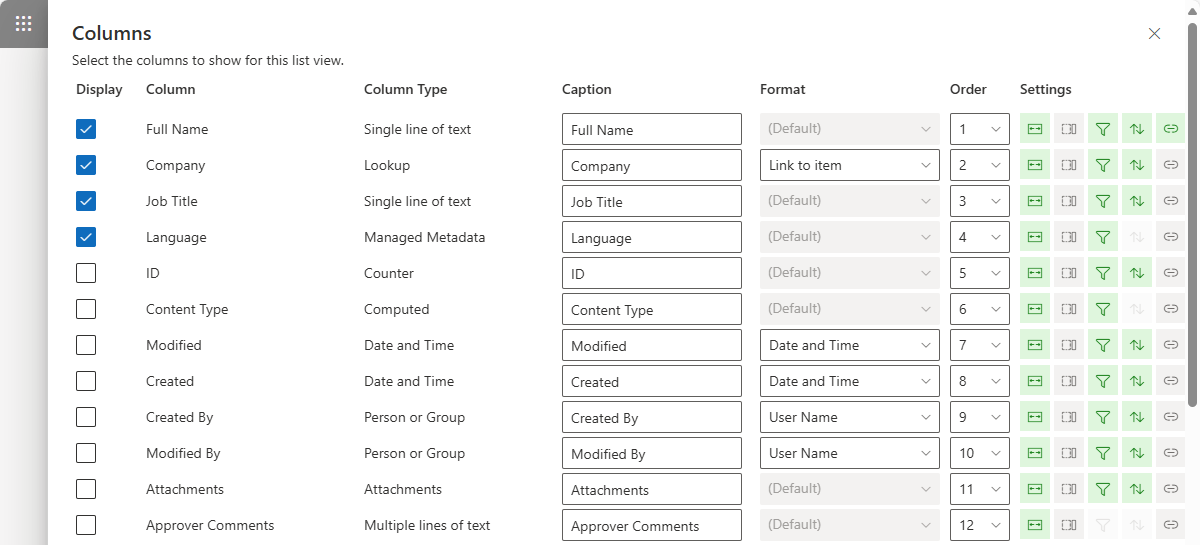
The last required parameter is the set of columns to display in the list view. Click the Select Columns button to open the column options panel.
❗ Important
The List Filter Web Part does not support selecting an existing view. Instead, you select the columns that you want to display in the web part.
Columns Display Options
For each column in the list view, you can set a Caption, a Format, and the Order, as well as a set of switches that control how the column behaves.
| Icon | Name | Description |
|---|---|---|
 | Resizable | Allow users to resize column |
 | Collapsible | Allow the web part to collapse the column if there is not enough space for it |
 | Filterable | Allow users to filter the column values by selecting one or more options in the column context menu |
 | Can be sorted | Allow sorting the view by column |
 | Linked to item | Display column value as a link to item or document |
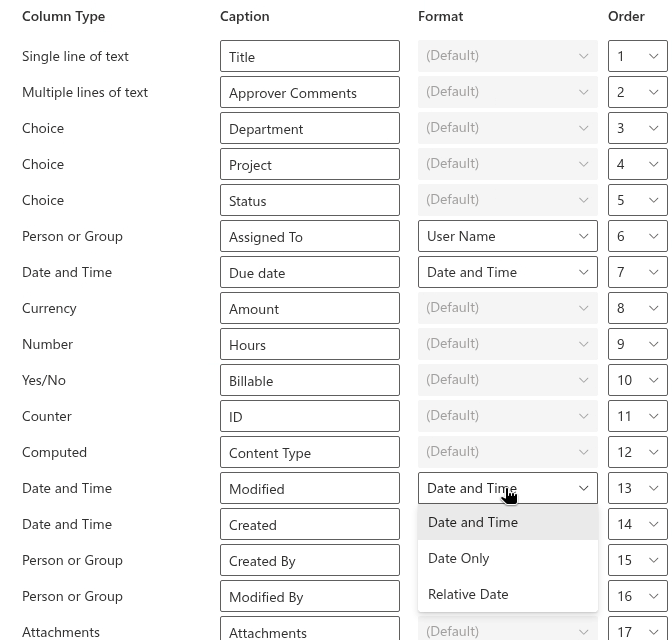
The Format drop-down offers the display formats that make sense for the column type; for other types it shows (Default) and is disabled:
- Date and time columns: Date and Time, Date Only, Relative Date.
- Lookup columns: Link to item or Value.
- Person or Group columns: User Name, User Name (with picture), or User Name (with picture and details), which opens a profile card when the user clicks the name.
- Hyperlink or Picture columns in picture format: 32 x 32 px, 64 x 64 px, or 96 x 96 px.
- Thumbnail column of a document library: 176 x 99 px or 96 x 54 px.
Multiple lines of text columns are rendered as multiline text automatically.
💡 Tip
Captions, formats, and the other column options are described in detail in KB10258. Configuring Columns in List Filter Online: Captions, Formats and Display Options.
Folders
This section controls how data in your folders is displayed.
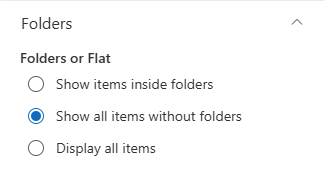
You can choose from several options under Folders or Flat:
Show items inside folders. Displays the items inside each folder separately; users navigate into folders and back with the breadcrumb bar.
Show all items without folders (default). Shows all items at the same level, with no folders - a "flat" view.
Display all items. Shows all items and their folders at the same level.
💡 Tip
Folder navigation, the flat view, and breadcrumbs are explained in KB10261. Working with Folders in List Filter Online: Folder Navigation, Flat View and Breadcrumbs.
Item Limit
This section controls how many items appear in the view. Enter the number in the Row Limit field; the value must be between 1 and 1000 (the default is 20).
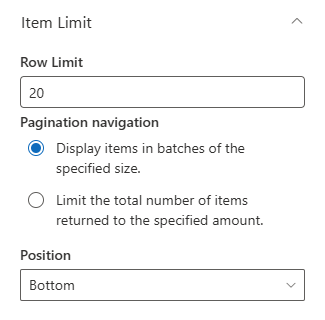
Pagination
To enable pagination, select Display items in batches of the specified size. and choose the Position of the pagination control: Bottom, Top, or Top + bottom.
To disable pagination, select Limit the total number of items returned to the specified amount. and enter the number you want.
Sorting
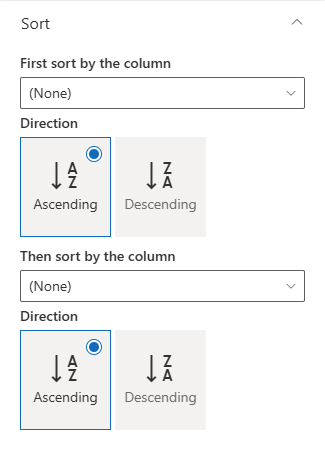
You can sort the view by up to two columns in the Sort section: First sort by the column and Then sort by the column, each with its own Direction (Ascending or Descending). Only sortable columns are offered.
Group By
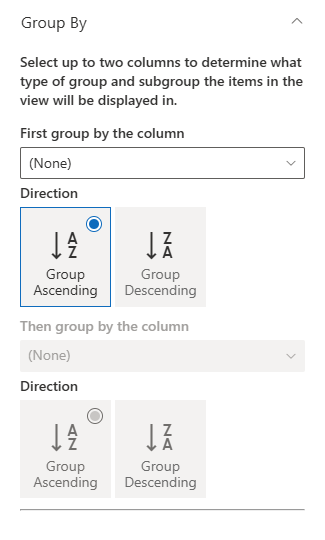
Grouping items helps you navigate and understand the data more easily. To group items, select up to two columns in the Group By section of the web part settings - First group by the column and Then group by the column - and choose Group Ascending or Group Descending for each level:
📝 Note
Group headers are displayed for the first grouping column only. Groups always load expanded. Users can collapse and expand individual groups in the results table, and the group state is not configured in the property pane.
Totals
Totals let you perform simple calculations on specific columns in the list view. They appear in one footer row under the table, not per group.
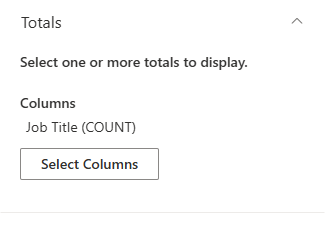
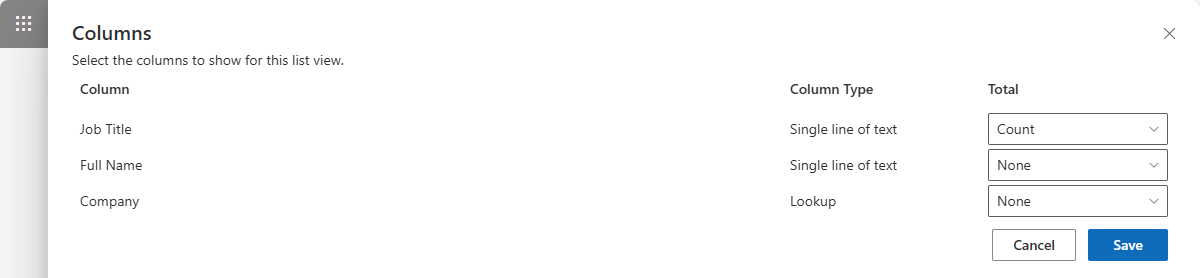
To configure totals, click the Select Columns button under the Totals heading in the configuration pane and choose the function to apply: Count for any column type; Average, Maximum, and Minimum for date, number, and currency columns; Sum, Std Deviation, and Variance for number and currency columns.
💡 Tip
See KB10260. Grouping, Sorting and Totals in List Filter Online for examples of grouped views with totals.
Filter
The Filter section of the List Filter web part includes a Query Builder for creating complex queries that retrieve specific data from your SharePoint lists and libraries. The query is applied before the users' own filters, so it defines the set of items the web part works with.
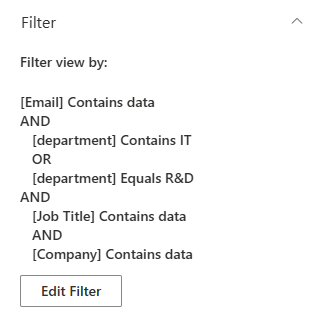
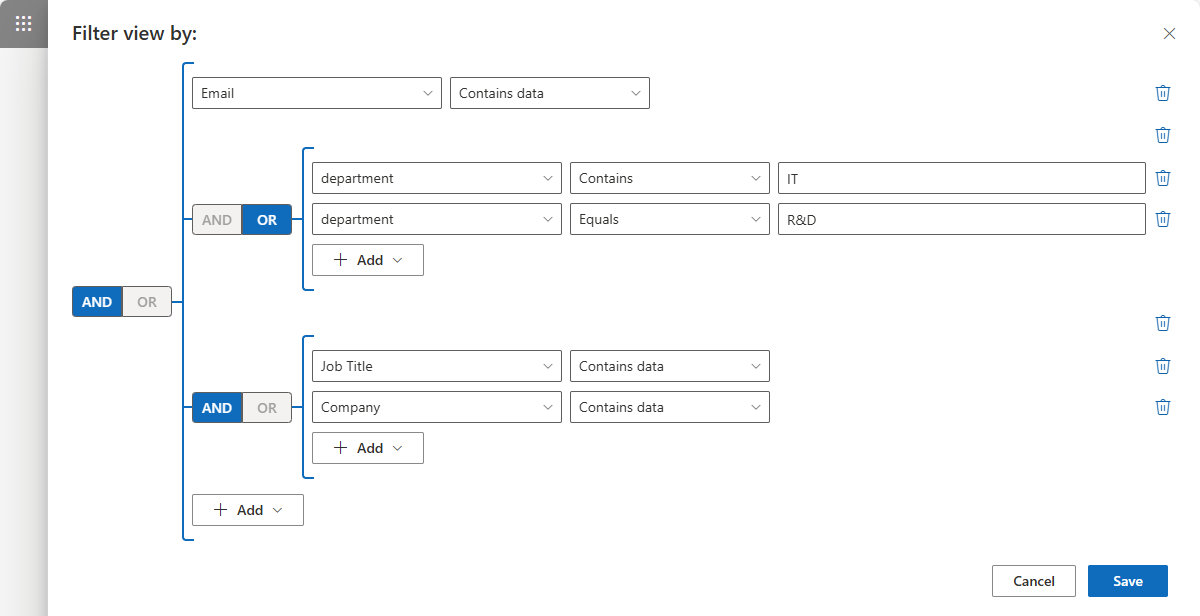
The Query Builder lets you group conditions with AND / OR, nest groups, and choose the operators available for each column type - including dynamic operators such as Today, Last X Days, or Is Current User.
📝 Note
The List Filter Query Builder creates a CAML query to retrieve data from a SharePoint list or library. A step-by-step example is given in KB50025. How to Build a Complex Query with the List Filter Online Query Builder.
Filter Pane
The filter pane lets end users filter the list view using the columns and controls that an administrator has specified.
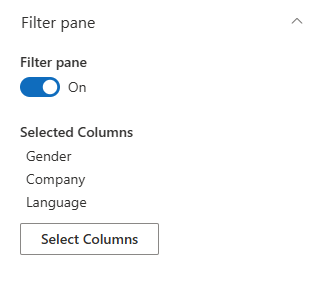
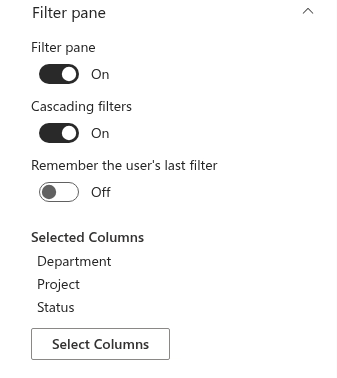
The Filter pane section contains three switches:
- Filter pane. Shows or hides the filter pane above the results.
- Cascading filters. When enabled, the options of both drop-down controls are narrowed by values selected in the other filter-pane controls. This reduces unsuitable combinations but does not guarantee a non-empty result. The switch is available only while the filter pane is enabled. See KB10256. Cascading Filters: Narrowing Drop-Down Options by Other Selected Filters.
- Remember the user's last filter. Stores the filter a user applied in their browser and restores it the next time they open the page. A filter shared through a link always takes precedence over the remembered filter. Saved filters and filter links are described in KB10253. Saving Filters and Sharing a Link to a Filtered View in List Filter Online.
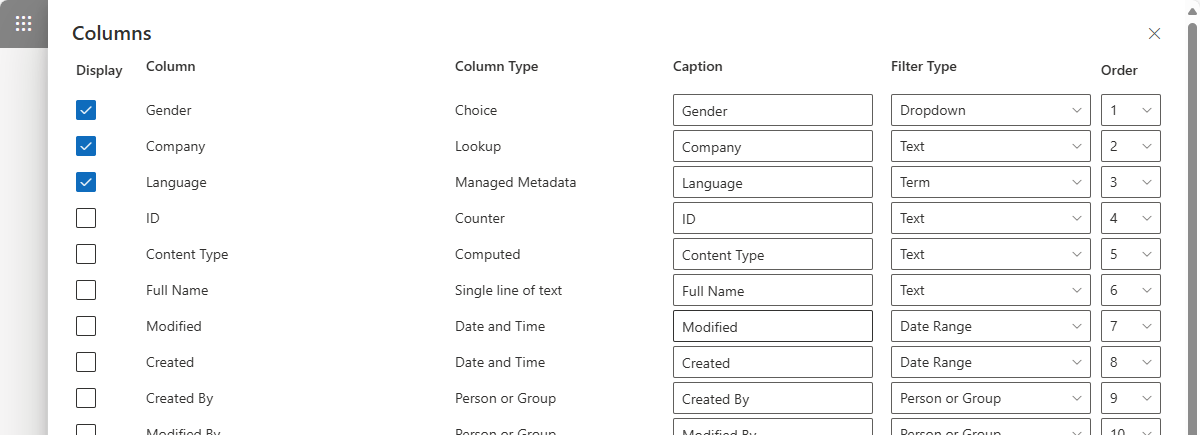
To choose the columns and filter types, click the Select Columns button and select the columns that will be available for filtering. For each column you set a caption, a Filter Type (the control shown to users, for example Dropdown, Autocomplete, Date Range, Person or Group, or Slider), and the order.
❗ Important
When the list contains more than 5,000 items, the web part marks every selected filter column without an index with a warning: The column is not indexed. Filtering a large list by this column may not work. Click the warning icon to run Create Index for that column directly from the panel. See KB10257. Filtering Large Lists: Indexed Columns and the 5,000-Item Threshold.
💡 Tip
All filter controls and the field types they support are listed in KB10255. Filter Pane Controls and Supported Column Types in List Filter Online.
Command Toolbar
The Command toolbar section has a single switch, Commands, that shows or hides the command toolbar above the list view.
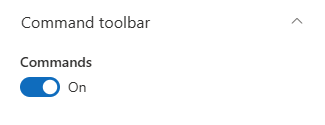
When the toolbar is visible, it contains the following commands:
- New. Creates a new item; in a document library the menu offers Folder and Document (upload). The command appears only for users who can add items.
- Export. Exports the view to an Excel workbook: Current Page, All Items, or Selected items.
- Saved Filters. Opens a menu with Save Current Filter, Copy Link to Filter, and the user's saved presets.
- Refresh. Reloads the data.
When a user selects an item, the toolbar additionally shows the commands that apply to the selection - such as Open, Download, Edit, or Delete - depending on the item type and the user's permissions.

💡 Tip
The export workflow is described step by step in KB50022. How To Export a SharePoint List to Excel.
Appearance
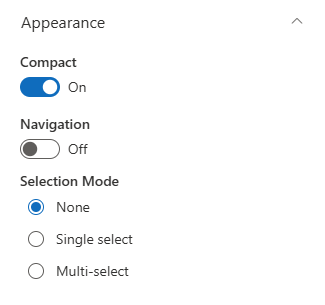
The Appearance section controls how the web part looks. You can adjust the following settings:
- Compact. Display the list in a compact format to reduce the space between rows.
- Use column formatting from the list. Render columns with the column formatting JSON defined in the list settings, so the web part shows the same colors, icons, and layouts as the native list view. Formatting features that are not supported fall back to the default rendering of that column. See KB10259. Using SharePoint Column Formatting JSON in List Filter Online.
- Navigation. Show or hide the breadcrumb navigation bar above the results.
- Selection Mode. Choose from three options: None, Single select, or Multi-select. Selection is required for the Selected items export scope and for item commands in the toolbar.
Developer Tools
The Developer tools section contains the Enable developer mode switch. When it is on:
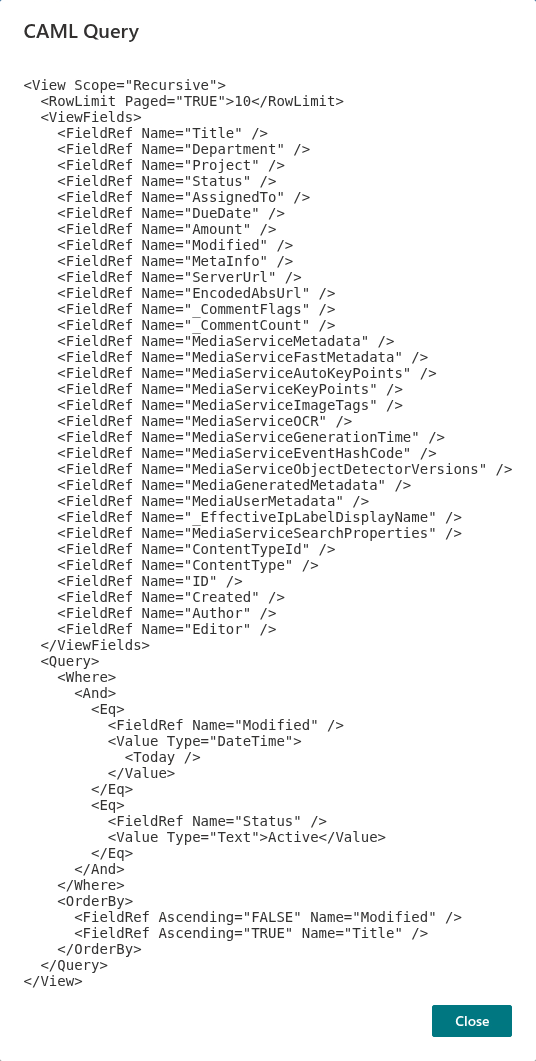
- the command toolbar gets a developer menu with the CAML Query command, which opens a dialog with the exact CAML query the web part sends to SharePoint for the current view and user filters;
- the Columns panel shows an index indicator next to each column name - Indexed or Not Indexed - together with the internal (schema) name of the column.
About
The About section shows the license status of the product in your tenant - trial, active, or expired - and a link to the product page where you can purchase a subscription.
Summary
The Vitextra List Filter Online web part is an essential tool for managing data in SharePoint Online. It lets users efficiently filter and retrieve data from lists and document libraries - with the filter pane, cascading and saved filters, grouping and totals, column formatting, and export to Excel - improving both accuracy and productivity. With its extensive configuration options, the web part adapts to the specific needs of any organization - a valuable addition to your SharePoint toolkit.
💡 Tip
For the end-user side of the web part - applying filters, saving them, and exporting data - see KB10252. List Filter Online: A Quick Guide for End Users.