This article describes how to install a Vitextra product in a SharePoint on-premises environment using the product installation wizard.
❗ Important
This guide covers the installation of Vitextra farm solutions in an on-premises environment (SharePoint Server).
For cloud-based solutions for Microsoft 365 (SharePoint Online, Microsoft Teams), see the Installing Cloud-based Product article instead.
Prerequisites
SharePoint Services
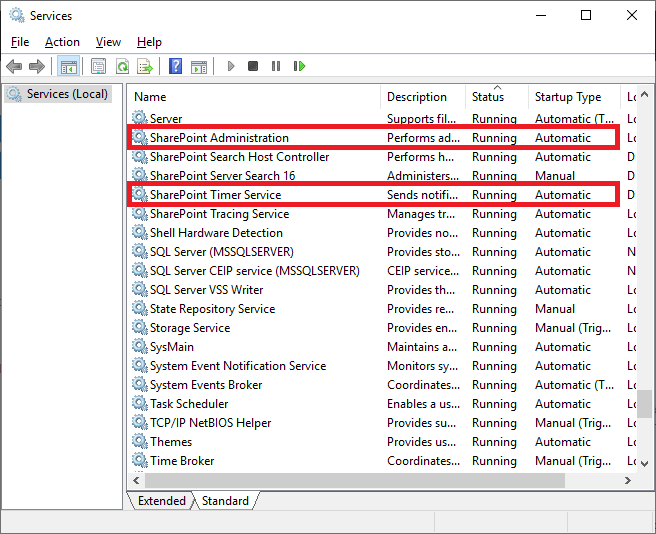
Before you begin, make sure these services are running on the SharePoint Server:
- SharePoint Administration
- SharePoint Timer Service
Required Permissions
To perform the installation, you need the following permissions:
- Membership in the local server's Administrators group.
- Membership in the Farm Administrators group.
Installation Package
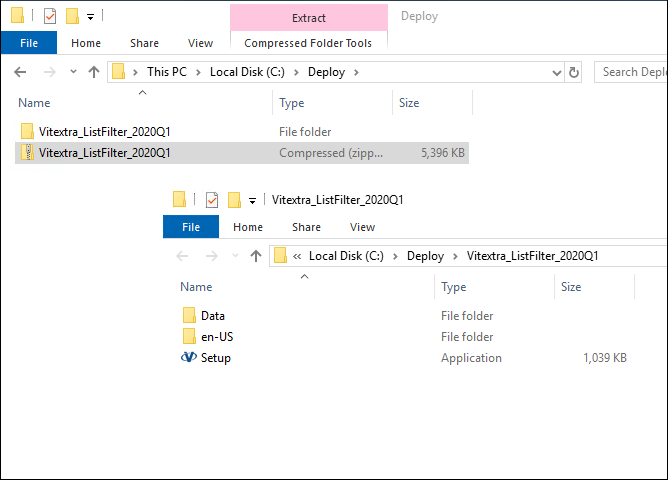
Download the product's ZIP file (*.zip) from the downloads page and extract it on the SharePoint front-end server where you'll run the installation.
❗ Important
Do not install Vitextra .wsp files directly with PowerShell or STSADM.
Installation
Open the folder with the extracted installation package and run Setup.exe.
📝 Note
If the setup file doesn't run, right-click Setup.exe and select Run as administrator.
The installation wizard appears, as shown below:
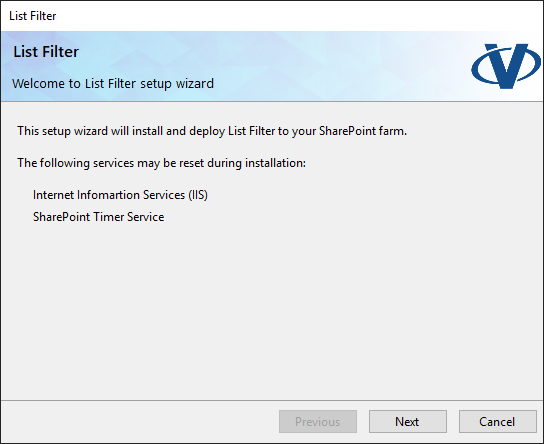
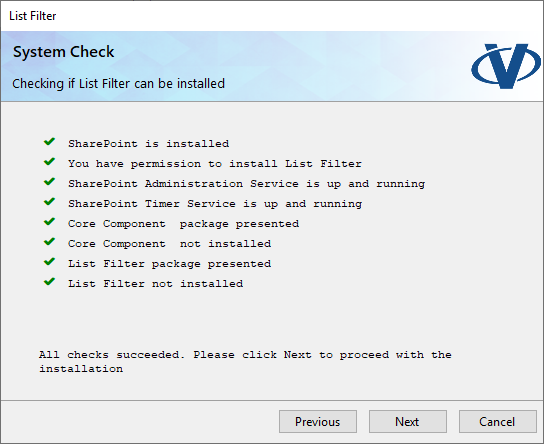
Click Next to start the system check, which verifies that the server meets all requirements for installing the product. When the check finishes, click Next.
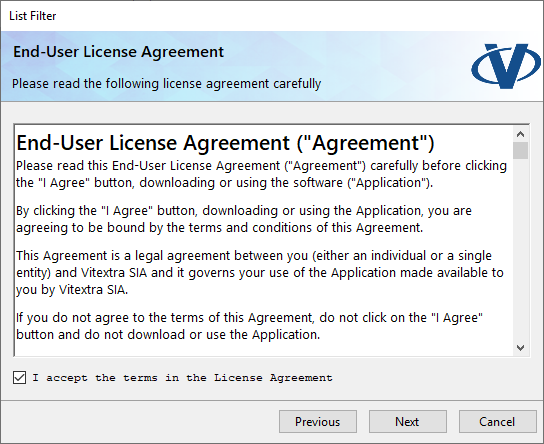
Review and accept the End-User License Agreement, then click Next.
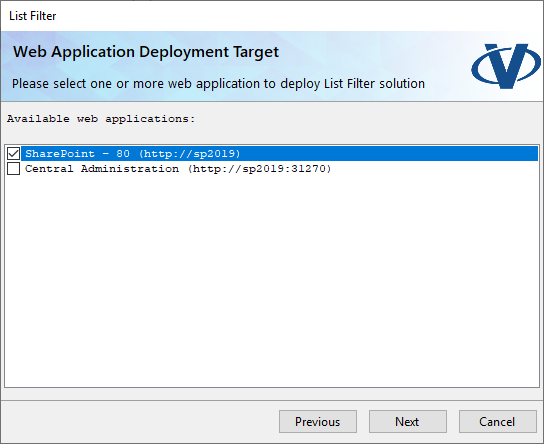
Under Web Application Deployment Targets, select the web applications where you want to install the product and click Next.
📝 Note
The Web Application selection screen may be skipped if the product contains no Web Application-scoped resources.
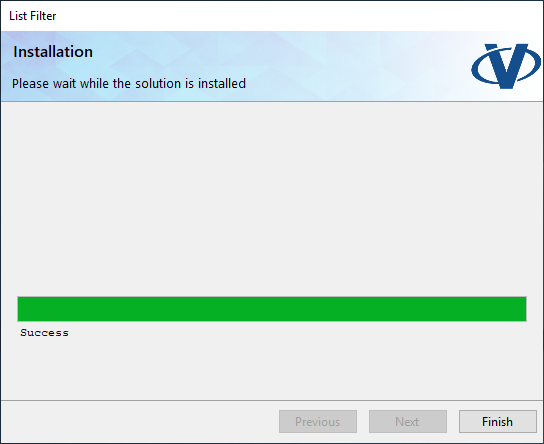
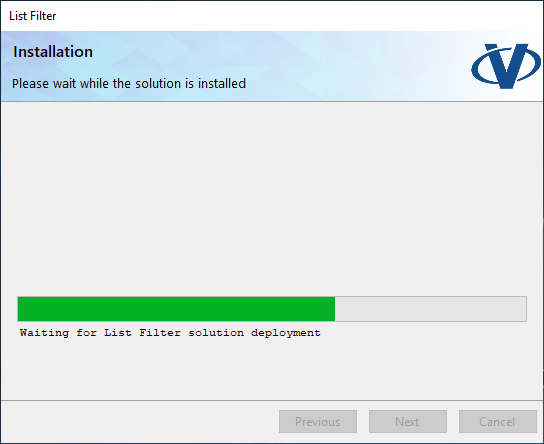
Wait while the product is installed.
When the installation is complete, click Finish to close the wizard.