Employee Directory
 Extension attributes in on-premise Active Directory (AD) let organizations extend directory objects with new attributes tailored to their needs. These custom attributes can be synchronized with Microsoft Entra ID for seamless integration across platforms.
Once synchronized, you can display them on SharePoint sites and in Microsoft Teams using the Employee Directory web part.
This article is a complete guide to setting up the Employee Directory web part to display custom attributes of Entra ID user objects.
Attribute Name
Custom extension attributes in Entra ID are not named the same way as in on-premises AD. For example, an attribute such as fax in on-premises AD follows a different naming convention in Entra ID. Custom attribute names in Entra ID have this format:
extension_{uniqueid}_attributeName
To use these custom attributes, you first need to retrieve their names from Entra ID.
Prerequisites
Before you begin, make sure the PowerShell modules needed to work with Microsoft 365 are installed. Open PowerShell and run the following commands to install the MSOnline and AzureAD modules:
Install-Module -Name MSOnline
Install-Module -Name AzureAD
Connect to Your Environment
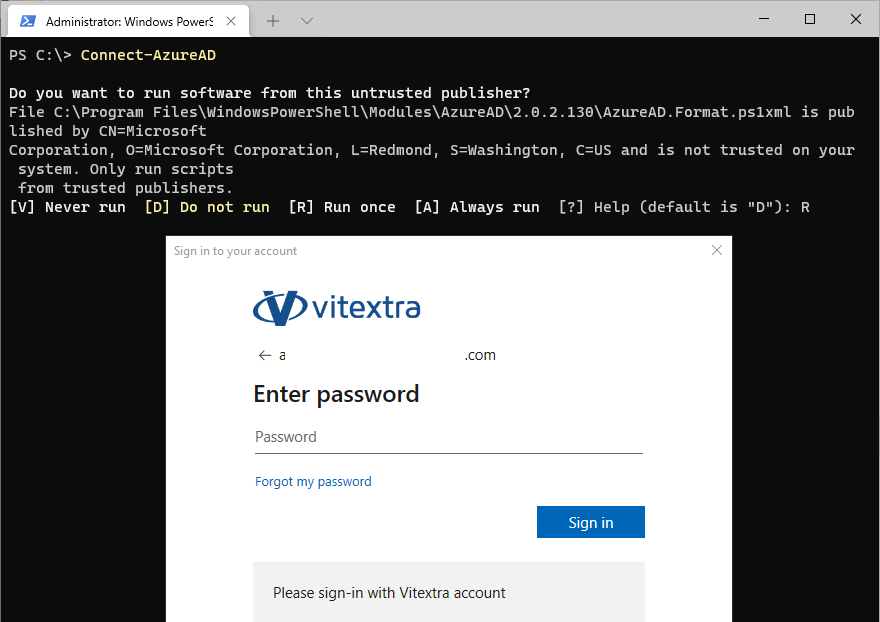
To connect to your Microsoft 365 environment, run the Connect-AzureAD cmdlet:
Connect-AzureAD
You'll be prompted to sign in with your corporate account. This connection is required to access and manage your Entra ID attributes.
Getting Custom Attributes
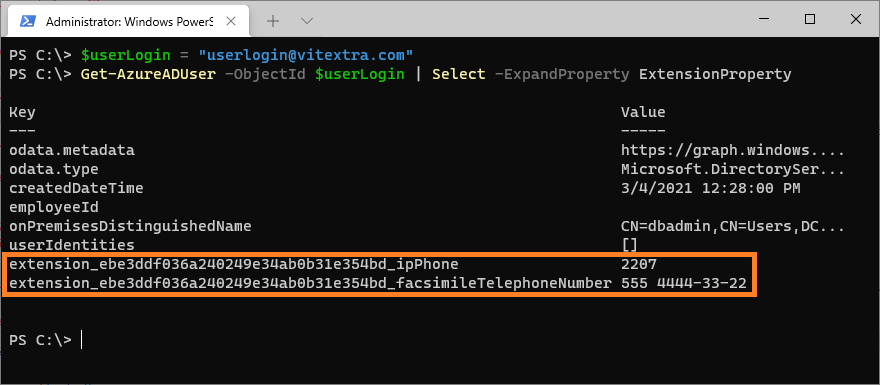
To retrieve the custom attributes, replace dbadmin@vitextra.onmicrosoft.com with the login of a user in your Entra ID that has the attributes you need, then run the following script:
$userLogin = "dbadmin@vitextra.onmicrosoft.com"
Get-AzureADUser -ObjectId $userLogin | Select -ExpandProperty ExtensionProperty
This command lists the extension properties you can use as custom attributes in the Employee Directory web part.
Web Part Properties
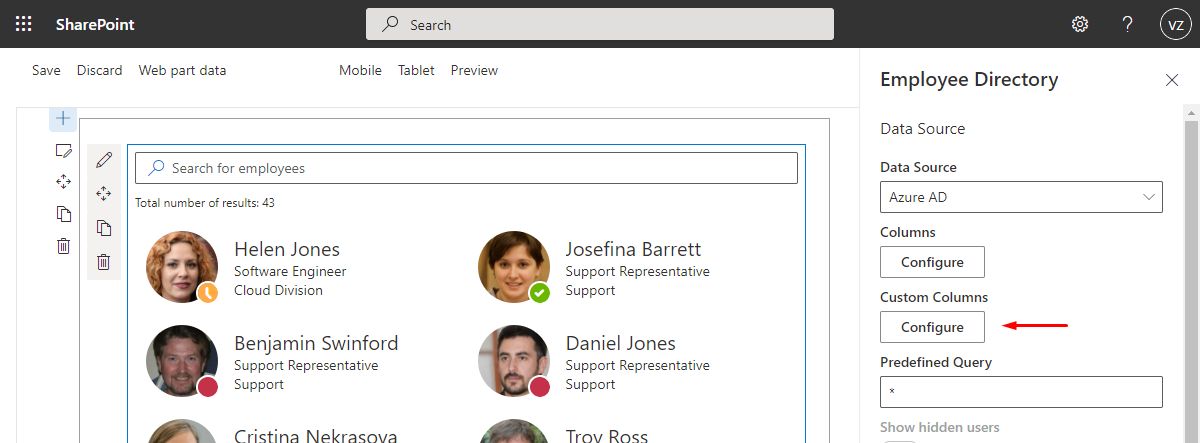
To configure the Employee Directory web part, go to the page where it's placed and enter edit mode. Open the web part settings and select Configure under the Custom Columns heading:
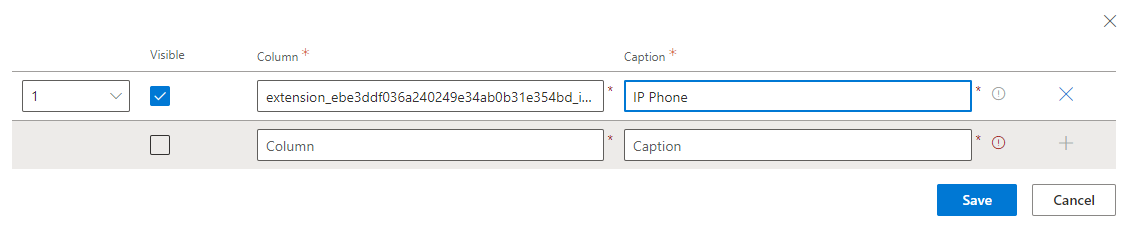
Add the custom attributes to the list and click Save to apply your changes.
📝 Note
Both Employee Directory and Employee Directory (Entra ID) have similar settings for custom user properties.
Once the custom attributes are defined and marked as visible, they appear in the employee details pane:
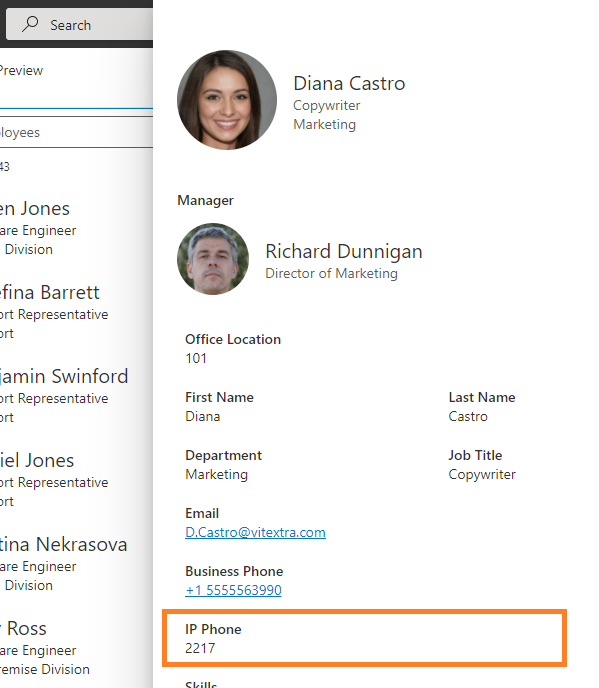
Finally, publish the page to save your changes and make the custom attributes available to users.
Summary
Extending directory objects with custom attributes in Entra ID expands what the Employee Directory web part can show in SharePoint and Microsoft Teams.
By following the steps in this article, you can retrieve and display these attributes, improving the experience and making more information accessible across your organization.