Deze content is niet beschikbaar in jouw taal.

This article describes how to filter data in a SharePoint list or document library by date range using the Vitextra List Filter web part.

Introduction

The built-in SharePoint filter can't filter a list or document library by date range. Its native functionality is limited to choosing an exact date from the existing values:
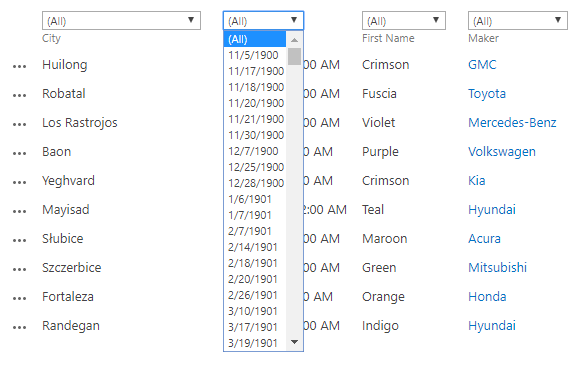
Filter Date Time column

Filter Date Time column

In everyday work, you often need to filter a list or document library by a date range. The usual workaround is to create a dedicated view - but the more cases you have, the more views you end up maintaining.

Vitextra List Filter lets you get rid of those extra views and work more efficiently.

Prerequisites

Before you can use the date range filter, activate the Vitextra: List Filter site collection feature and add the List Filter web part to the list view or the page where the view is located.

For details, see the Configure List Filter article.

Add Column to the Filter Panel

Click Fields to open the column settings dialog:
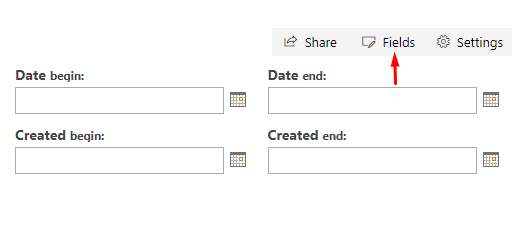
Filter panel settings

Filter panel settings

📝 Note
If the settings buttons don't appear on the web part, check your permissions and try again.

In the settings dialog, select the DateTime columns you want to filter by and choose the Date range filtering control:
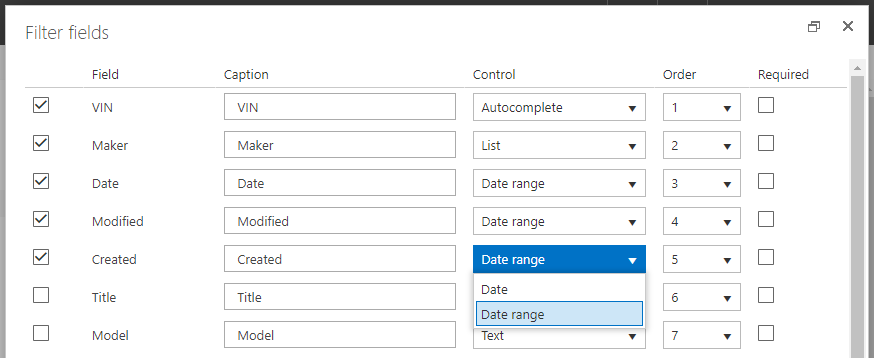
Columns Settings Dialog

Columns Settings Dialog

Click Save and refresh the page to see the changes.

Filter by Date Range

Once you've configured the filter, the panel shows two date pickers for each DateTime column you selected:
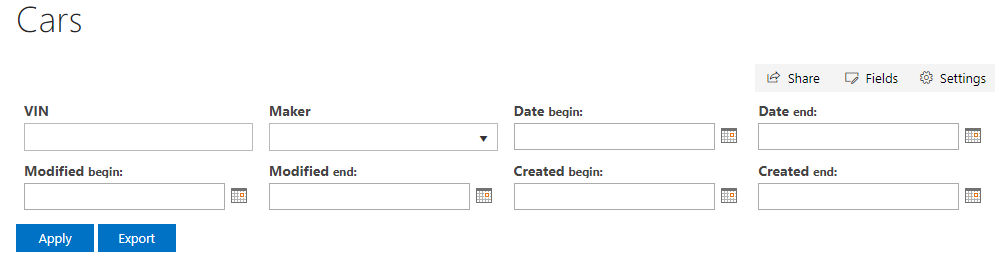
Filtering Panel with date range controls

Filtering Panel with date range controls

Enter a date or pick one with the SharePoint date picker, then click Filter to apply it.
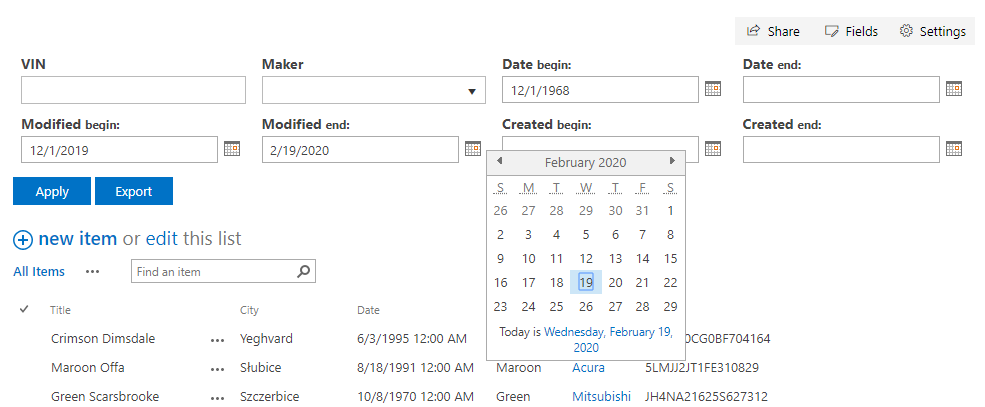
Date Picker Control

Date Picker Control

📝 Note
You can specify both the begin and end values, or just one of them, to filter the data.

Vragen en antwoorden

Stel een vraag over dit artikel en ontvang een officieel antwoord van ons team.

Er zijn nog geen vragen. Stel de eerste vraag.

Uitgelichte artikelen

Snelfilters in Employee Directory: Mijn afdeling, Mijn team, Mensen met wie ik samenwerk en Favorieten

Lees welke medewerkers de snelfilters in Vitextra Employee Directory tonen, welke gegevens ze gebruiken, waar favorieten worden opgeslagen en waarom een tabblad soms ontbreekt. Inclusief instellingen voor beheerders.

6 min
Organizational Chart. Overzicht van de oplossing

Vitextra Organizational Chart bouwt een interactief organigram op basis van Microsoft Entra ID voor SharePoint Online en Microsoft Teams. Ontdek de automatische hiërarchie, twee weergavemodi, horizontale en verticale indelingen, medewerkerskaarten met foto's en aanwezigheidsstatus, zoeken, filters en export naar PDF en JPEG.

8 min
Thema’s: hoe Discussions het thema en de lettertypen van uw site overneemt

Naslagwerk over de vormgeving van Vitextra Discussions en Discussions Activity: het SharePoint-sitethema als CSS-variabelen, themaslots voor tekst, koppelingen, knoppen, scheidingslijnen en labels, sectieachtergronden en secties met volledige breedte, het sitelettertype, lichte en donkere Teams-thema’s, talen van rechts naar links, interfacetalen en grenzen aan maatwerk.

6 min

Delen