This article describes how to find the unique identifier (Tenant ID) of your Microsoft 365 tenant. The Tenant ID is required to assign a license for Vitextra products such as Employee Directory or Stock Quotes.
Prerequisites
You have installed at least one Vitextra product for Microsoft 365.
📝 Note
You can also use Microsoft's Find your Microsoft 365 tenant ID guide to find your Tenant ID.
💡 Tip
No Vitextra product installed yet? Use the free online Tenant ID Lookup tool on our website: paste any SharePoint Online link and get the Tenant ID without installing anything. See Online tools below.
Tenant ID
Open the page that contains a Vitextra web part in edit mode, and go to the web part settings.
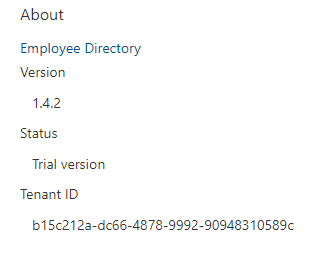
In the property pane, scroll down to the About section. The Tenant ID is shown at the bottom:
Online tools
The Tenant ID can also be looked up on the Vitextra website, without installing a product or opening the Microsoft 365 admin center. Sign in with your Vitextra account (the tools are free) and open one of the tools:
- Tenant ID Lookup — paste any SharePoint Online or OneDrive link (a site, a document, the admin center), a company domain or just the tenant name, and get the Tenant ID, the confirmed domain and the tenant region.
- Tenant Info — the complete tenant passport: organization name, Tenant ID, default domain, region and cloud, managed or federated sign-in, and the OpenID endpoints.
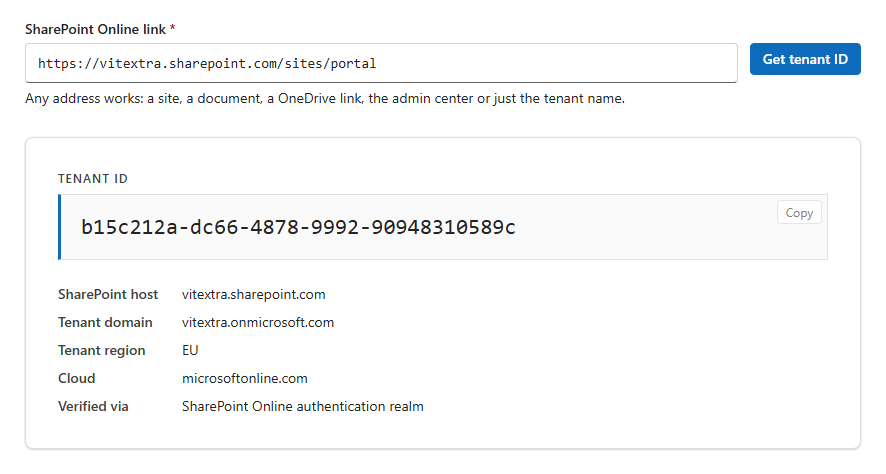
The tools query only Microsoft's public endpoints: no sign-in to the tenant and no administrator rights are required, and the links you enter are not stored.
📝 Note
The tools return the Tenant ID of the tenant that owns the link or domain you enter. If your organization uses several tenants, make sure the link belongs to the tenant where the Vitextra product is installed.