Absence & Coverage
Overview
Every time an employee submits a request in the My Absences web part, the product decides who has to approve it. You do not assign approvers request by request: the decision follows a fixed chain that uses the manager stored in Microsoft Entra ID, an optional fallback approver and a flag on the absence type.
This article describes that chain, gives examples, and explains what the employee and the approver see.
The decision chain
When the employee clicks Submit request, the product works through the following steps in order and stops at the first one that applies:
- The absence type needs no approval. The request is stored as Approved at once. No approver is involved. In the default set of absence types this applies to Sick leave and Remote work.
- The employee has a manager in Microsoft Entra ID. The manager becomes the approver and the request is stored as Pending approval.
- There is no manager, but a fallback approver is configured. The e-mail address from the FallbackApprover setting becomes the approver (KB10356. How to Set the Fallback Approver).
- There is neither a manager nor a fallback approver. The request is not created and the employee sees an error message (see below).
After steps 2 and 3 there is one more check: if the approver turns out to be the requester, the request is approved at once. This is self-approval. It happens, for example, when the fallback approver has no manager and requests time off: nobody above them can decide, so the request does not wait for anybody.
📝 Note
The approval flag belongs to the absence type, not to the employee. Whether a type needs approval is set by the administrator when the type is configured (KB10352. How to Add and Configure Absence Types).
Examples
| Situation | Result | Status | Approver |
|---|---|---|---|
| Anna requests Vacation; her manager in Entra ID is Peter Hansen | Peter decides in his Approvals tab | Pending approval | Peter Hansen |
| Maria has no manager in Entra ID; the fallback approver is hr@contoso.com; she requests Vacation | The fallback approver decides | Pending approval | The fallback approver |
| Jonas has no manager and no fallback approver is configured; he requests Vacation | Error, request not created | - | - |
| Anna requests Sick leave (no approval needed) | Approved at once | Approved | None |
| Anna requests Remote work (no approval needed) | Approved at once | Approved | None |
| The fallback approver has no manager and requests Vacation | Self-approval, approved at once | Approved | None |
What the employee and the approver see
In the new request panel, absence types without approval show the information bar This absence type does not need approval: the request is approved immediately. before the employee submits. After submitting, a message confirms the outcome: The request was sent for approval. when the request waits for an approver, or The request was approved automatically. when it was approved at once.
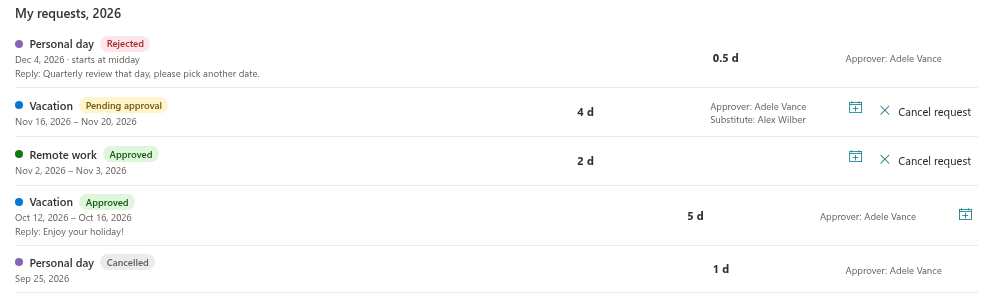
In the My requests, 2026 list each request shows its status pill and, for requests that went to an approver, the line Approver: followed by the approver's name. Requests that were approved at once have no approver, so this line is absent. When the approver replies, the comment appears in the same row after Reply:.
The approver finds the request in the Approvals tab of My Absences and decides as described in KB10334. How to Approve or Reject an Absence Request.
The approver is fixed when the request is submitted
The approver is stored on the request at the moment it is submitted. If the employee's manager changes in Microsoft Entra ID afterwards, or if you change the fallback approver, requests that are already waiting stay with the original approver.
💡 Tip
To send a waiting request to a different approver, the employee cancels it and submits it again. Cancelling releases the days and cancels any substitution tied to the request. Cancellation is available only while the request end date has not passed.
When no approver can be found
If the absence type needs approval and neither a manager nor a fallback approver exists, the employee sees: No approver was found: you have no manager in the directory and no fallback approver is configured. Please contact HR. and the request is not saved. The employee cannot fix this alone. The administrator should either fill in the manager in Microsoft Entra ID or set a fallback approver (KB10356. How to Set the Fallback Approver). For a list of all submission errors, see KB10331. Why You Cannot Submit an Absence Request: Messages and Solutions.
❗ Important
Approval is decided by the manager data in Microsoft Entra ID, not by the SharePoint site. Keep the manager attribute up to date for everyone who uses the product, otherwise their requests go to the fallback approver or fail.