Employee Directory
The Vitextra Employee Directory web part can find colleagues not only by name, department or job title, but also by what they know. Type "Power BI", "SAP" or "contract law" into the search box, and the directory lists the people who have that skill in their Microsoft 365 profile. This article explains how skills search works, how an administrator turns it on and fills in the data, and what users see when they search.
How skills search works
Employee skills are stored in each person's Microsoft 365 (SharePoint) user profile, in the Skills property. SharePoint search indexes this property, and Employee Directory queries that index whenever someone searches. The exact behavior depends on the web part and its data source:
| Web part and data source | How skills are searched | Where skill matches appear |
|---|---|---|
| Employee Directory, source Entra ID (Azure AD) | The search text is sent to SharePoint people search against the Skills property; the matching people (up to 45) are then loaded from Microsoft Graph. | At the top of the results, before the regular name, title and department matches. |
| Employee Directory (Entra ID) | Same skills lookup, run shortly after you stop typing. Only people already included in the directory are added, so the filter, exclusions and A–Z navigation still apply. | After the people who match by name and other searchable columns. |
| Employee Directory, source User profiles | The search box queries SharePoint people search directly, and that search already covers the skills in the profile. | Mixed with the other results, ordered by search relevance. |
For the two Entra ID–based options, the people found through their skills show the matched skills first in the Skills column, so it is obvious why each person is in the list. For example, a search for "SQL" shows "SQL Server, Power BI, Project management" rather than burying the matching skill at the end.
How the search text is matched:
- A single word is matched as a prefix: "Power" finds "Power BI", "Power Automate" and "PowerShell".
- A phrase with spaces is matched as an exact phrase: "project management" finds that phrase, not every profile containing "project".
- Search text needs at least two characters. Quotation marks and asterisks are ignored.
📝 Note
Skills search runs under the signed-in user's own permissions through the SharePoint Search API. It doesn't need any Microsoft Graph permission beyond the ones the web part already uses.
Where skills come from
All web parts read the same data: the Skills user profile property (internal name SPS-Skills), which Microsoft Graph exposes as the skills property of a user. SharePoint search makes it available as the Skills managed property.
The web part does not read other "expertise" fields. In particular, Ask Me About (SPS-Responsibility, shown in the directory as Responsibilities), Interests and skills stored in other Microsoft 365 services are not part of skills search. If your organization keeps expertise in one of these fields, either move it to Skills or add the field as a searchable column - see KB10049. How to Add Custom User Profile Attributes to the Employee Directory Web Part.
Enable skills search
Skills search is turned on by default in new web parts. To check or change it:
- Edit the page and open the web part properties.
- In the Data Source group, find the Search by skills toggle.
- Set it to Yes to add skill matches to the search results, or No to search only the regular columns.
- Republish the page.
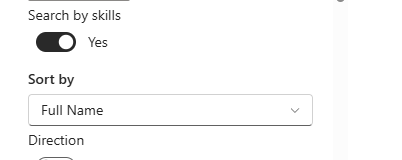
The toggle is available in both Employee Directory and Employee Directory (Entra ID). In the Employee Directory (Entra ID) web part, the search box also stays enabled when no column is marked as searchable, as long as Search by skills is on.
❗ Important
The Search by skills toggle affects only the Entra ID–based searches. When the Employee Directory web part uses the User profiles source, the search goes straight to SharePoint people search, which matches skills on its own, so skills are found whether the toggle is on or off.
Add the Skills column
The Skills column is hidden by default. Show it so users can see at a glance why a person was found:
- In the web part properties, under Columns, select Configure.
- Find the Skills row and select Show in list. For the Cards layout, select Skills in one of the Content Fields dropdowns after saving the column settings.
- Optionally rename the column in the Caption field and change its position.
- Select Save.

📝 Note
With the Entra ID–based options, the Skills column is filled for the people found through their skills. For other rows it stays empty, because Microsoft Graph doesn't return skills in directory list queries. The full list of skills for anyone is always available in the details pane. With the User profiles source, the column shows skills for every person.
For more about layouts and card fields, see KB10314. Employee Directory Layouts: Details and Cards, Card Size, Card Fields and Group By.
Show skills in the details pane
The details pane can show a person's skills as a set of chips. In the web part properties, open the Panel group and make sure the Skills toggle is on (it is on by default). For the Entra ID–based options, the pane loads the skills from Microsoft Graph when it opens; for the User profiles source, it uses the skills returned by search.
Each skill chip is a link: select it (the tooltip reads Find people with this skill) to close the pane and search the directory for everyone with the same skill. With the User profiles source, the chip runs a precise Skills:"<skill>" query.

See KB10199. Employee Directory: Customizing the Details Pane for the other sections of the pane.
Populate employee skills
Skills search is only as good as the data in the profiles. There are several ways to fill in the Skills property.
Users edit their own profile. If your organization allows profile editing, employees can add their skills on their SharePoint profile page (https://<tenant>-my.sharepoint.com/_layouts/15/editprofile.aspx). Encourage people to use short, consistent terms ("Power BI" rather than "I know some Power BI").
Administrators edit a profile in the SharePoint admin center. Go to More features > User profiles > Manage User Profiles, find the person, select Edit My Profile and fill in Skills.
Administrators update many profiles with PnP PowerShell. A SharePoint administrator can set skills in bulk, for example from a CSV file:
Connect-PnPOnline -Url "https://contoso-admin.sharepoint.com" -Interactive -ClientId "<your-app-id>"

Set-PnPUserProfileProperty -Account "megan@contoso.com" `
    -PropertyName "SPS-Skills" `
    -Values "Power BI", "SQL Server", "Project management"
Microsoft Graph. The skills property of a user can be updated with PATCH /users/{id} only with delegated permissions, that is, by the signed-in user for their own profile. Application-only updates of skills are not supported by Microsoft Graph, so use PnP PowerShell for bulk changes.
❗ Important
New and changed skills become searchable only after SharePoint search re-indexes the user profiles. This usually takes several hours and can take up to a day or longer in large tenants. Until then, the details pane of the Entra ID–based options may already show the new skill while the search doesn't find it yet.
Search by skills
For users, skills search needs no special syntax. Type a skill into the Search for employees box:
- Type one word, such as "Python", to find everyone whose skills start with it.
- Type a phrase, such as "data analysis", to find that exact skill.
- Combine the search with quick filters: with My department selected, the skill matches are limited to your own department.
People found through their skills are added to the people who match by name, job title, department and other searchable columns. If the Skills column is visible, the matching skill is listed first in it.

You can also start a skills search from the details pane: open a colleague's details and select one of their skills to see everyone else who has it.
Troubleshooting: the search finds no one by skill
If a skills search returns no one, or misses people you expect, check the following:
- The toggle. For the Entra ID–based options, make sure Search by skills is set to Yes.
- The search text. Use at least two characters. A phrase must match the stored skill exactly; try a single word instead.
- The profile data. Open the person's details pane. If the Skills section is empty, the person has no skills in the Skills property - values in Ask Me About or Interests are not searched.
- Indexing delay. Recently added skills may not be in the search index yet. Wait for the next people index update.
- Search visibility. The person must be found by SharePoint people search. Profiles hidden from search, or accounts without a user profile, can't be found by skill.
- Web part scope. In Employee Directory (Entra ID), only people included by the web part's filter and not excluded can appear. The My department quick filter also narrows the skill matches.
- Many matches. The Employee Directory web part with the Entra ID source adds the first 45 people found by skill. Refine the search text if the skill is very common.
💡 Tip
To set up the web part from scratch, see KB10309. How to Add and Configure the Employee Directory Web Part. To decide between the two directory web parts, see KB10310. Employee Directory vs. Employee Directory (Entra ID): Which Web Part to Choose.